

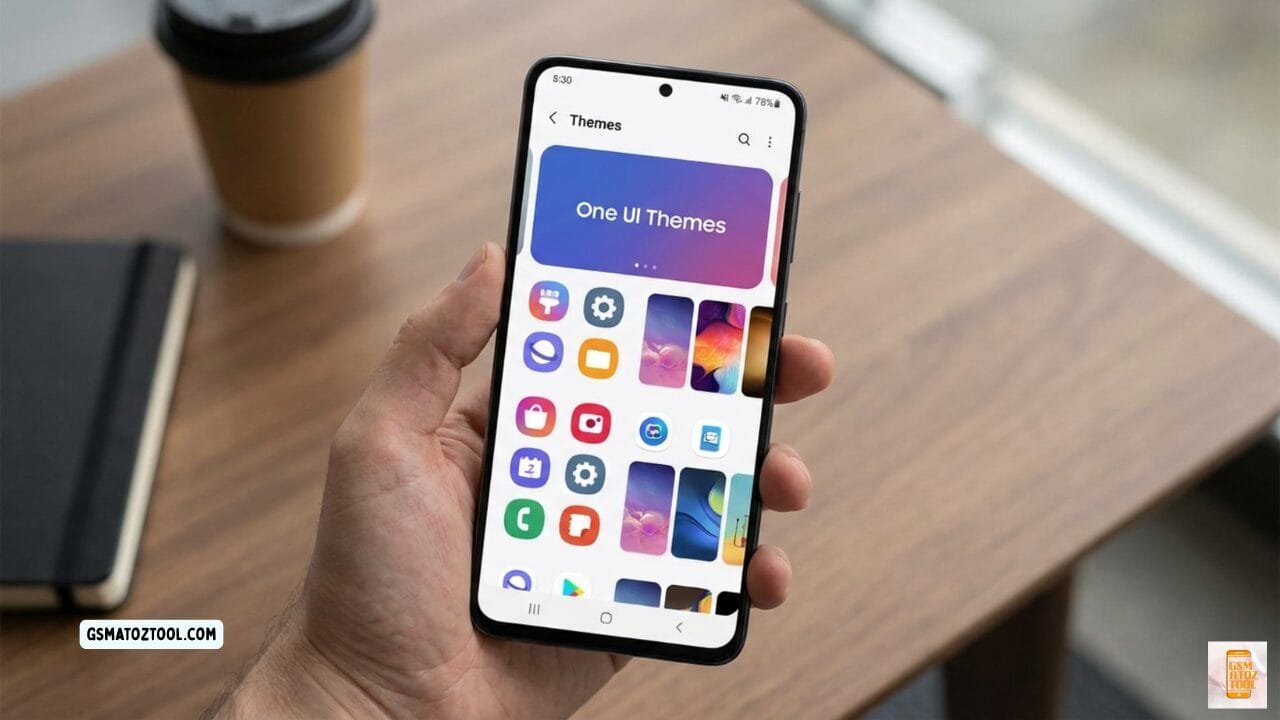
This is what the one ui themes section looks like inside the samsung galaxy theme store — colorful icons wallpaper previews and hundreds of free and paid themes available in just one tap.
Ever Scrolled Through Someone’s Samsung Galaxy And Thought Wait Why Does Their Phone Look So Much Cooler Than Mine? The Icons Are Different The Colors Feel Premium And Even The Lock Screen Looks Like Something Out Of A Tech Magazine. That’s The Magic Of One Ui Themes And Trust Me You’re Not The Only One Who’s Been Curious About It.
In This Guide We’re Going To Break Down Everything You Need To Know About One Ui Themes From What They Actually Are To How To Apply Them To The Best Free And Paid Themes You Can Try Right Now On Your Samsung Galaxy. Whether You Want A Sleek Dark Amoled Look Or A Clean Minimal Vibe We’ve Got You Covered. Let’s Make Your Phone Look Exactly The Way You Want It To.
What Are One Ui Themes?
One Ui Themes Are Customization Packages For Samsung Galaxy Phones And Tablets. A Single Theme Can Completely Transform Your Device’s Look — Changing Wallpapers Icons System Colors Fonts Lock Screen Style Quick Panel And Keyboard — All In One Tap.
How One Ui Themes Work On Samsung Galaxy
Samsung’s Built-in Galaxy Theme Store Hosts Thousands Of Themes Made By Designers Worldwide. Once You Download And Apply A Theme It Replaces The Visual Style Of Your Entire System Ui — From The Notification Panel To The Phone Dialer App.
What Can A One Ui Theme Change?
Modern One Ui Themes Can Customize These Elements On Your Galaxy Phone:
- Home Screen & Lock Screen Wallpaper
- App Icon Shapes And Styles
- System Fonts
- Quick Panel & Notification Shade
- Phone Dialer Contacts Messages App Appearance
- Samsung Keyboard Theme
- Lock Screen Clock Style
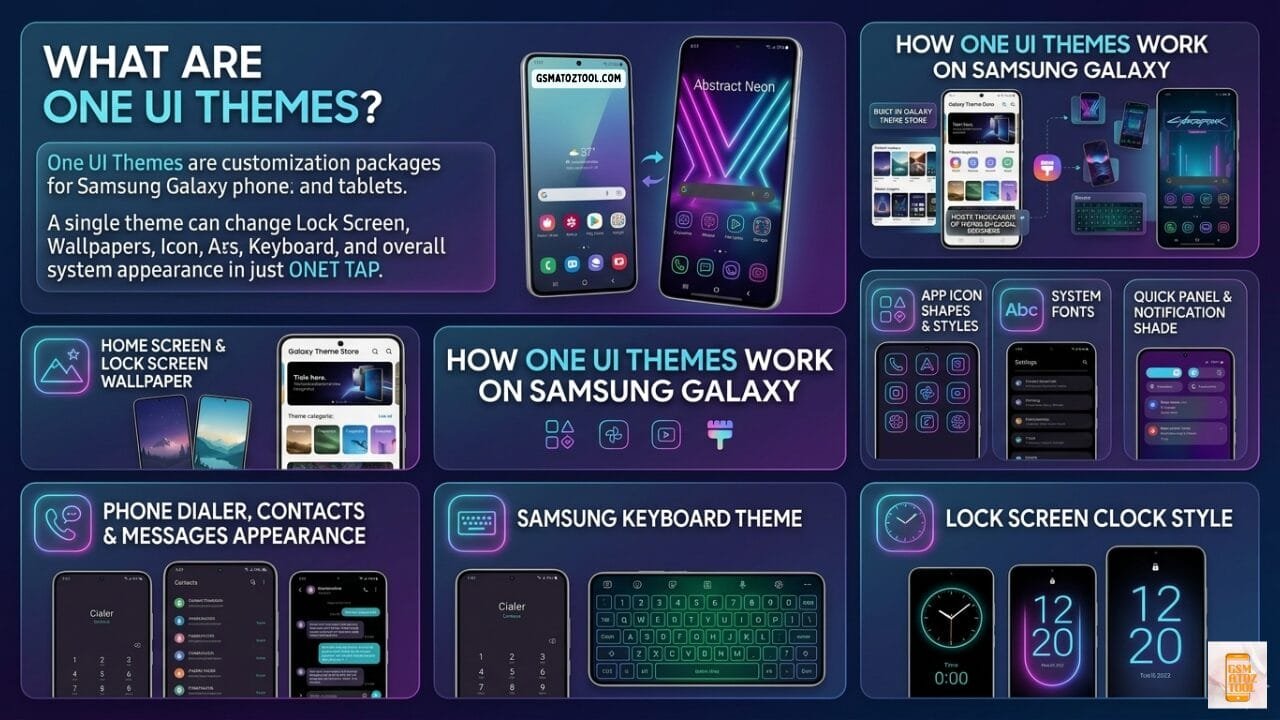
One ui themes can change your samsung galaxy’s home screen wallpaper icons keyboard quick panel and lock screen clock style — all in one tap from the galaxy theme store.
How To Apply One Ui Themes On Samsung Galaxy
Applying A One Ui Theme Is Quick And Easy. You Don’t Need Any Technical Skills Or Third-party Apps — Everything Is Built Right Into Your Samsung Galaxy Phone.
Step-by-step: Apply Theme From Galaxy Theme Store
Long-press On Home Screen
Touch And Hold Any Empty Area On Your Home Screen Until The Customization Options Appear At The Bottom.
Tap “Themes”
This Opens The Official Samsung Galaxy Theme Store Directly On Your Device.
Browse & Pick A Theme
Swipe Through Categories Like Dark Minimal Colorful Nature. Tap Any Theme To See A Preview Before Downloading.
Download The Theme
Tap Download For Free Themes. For Paid Themes Tap The Price — Most Have A Free Trial Option So You Can Test Before Buying.
Tap “Apply”
Confirm To Apply. Your Phone Transforms Instantly. You Can Apply Just Specific Elements (icons Wallpaper) Separately Too.
How To Remove Or Change A One Ui Theme
Once Applied A Theme Cannot Be “undone” Directly. To Revert Open The Theme Store → My Themes → Apply The Default Theme. This Brings Back Samsung’s Stock One Ui Look. You Can Also Switch To Any Other Downloaded Theme At Any Time.
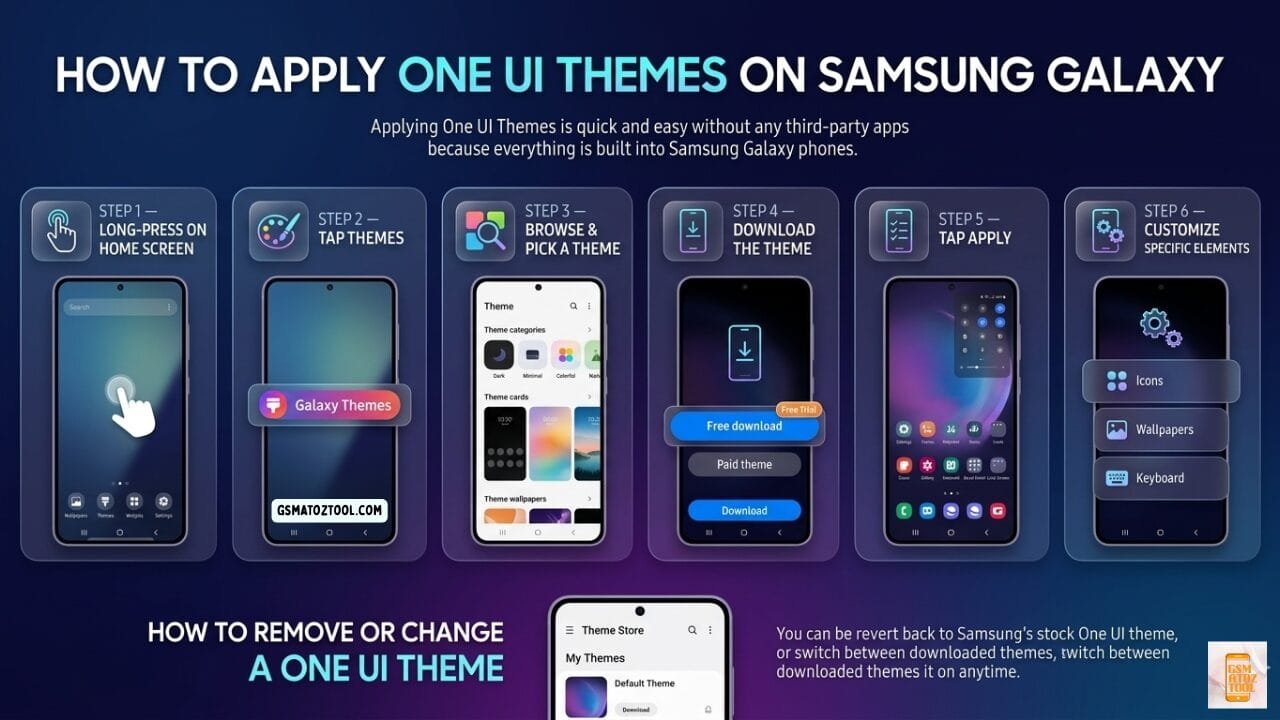
Applying one ui themes on samsung galaxy is easy — just long-press your home screen open galaxy themes browse download and tap apply. You can also customize icons wallpapers and keyboard separately.
Also Read
Best One Ui Themes (Free & Paid)
We Tested These Themes On Galaxy S25 S26 Ultra And Z Fold 6 Running One Ui 8.5. Here Are The Top Picks Across Categories:
Best Free One UI Themes
Black Edition V2
Pure Pitch-black Background With White Highlights. Fully Supports One Ui 8. Search Keyword: “Black Edition V2”
Sx Black Blue White
Clean Tri-color Dark Theme. Search: “Sx Black And Blue And White” In Galaxy Theme Store.
Pastel Bloom
Soft Pink And Lavender Tones. Very Popular Among Galaxy Z Flip And Z Fold Users.
Sky Blue Light
Cool-toned Light Theme With Sky Blue Accents. Great Readability In Daylight Conditions.
Best Paid One UI Themes
Colorful Expression Iii
Vibrant Gradients And Bold Colors. One Of The Most Visually Stunning Premium Themes — Worth Every Penny.
Aurora Dark Pro
Deep Space Dark Ui With Glowing Aurora Accents. Stunning On Amoled Galaxy S And Z Series.
Minimal Pro
Ultra-clean Layout With Monochrome Icons. Perfect For Productivity-focused Users Who Want No Distraction.
Midnight Carbon
Dark Gray With Sharp Carbon Texture. Premium Feel Works Beautifully On Galaxy S26 Ultra.
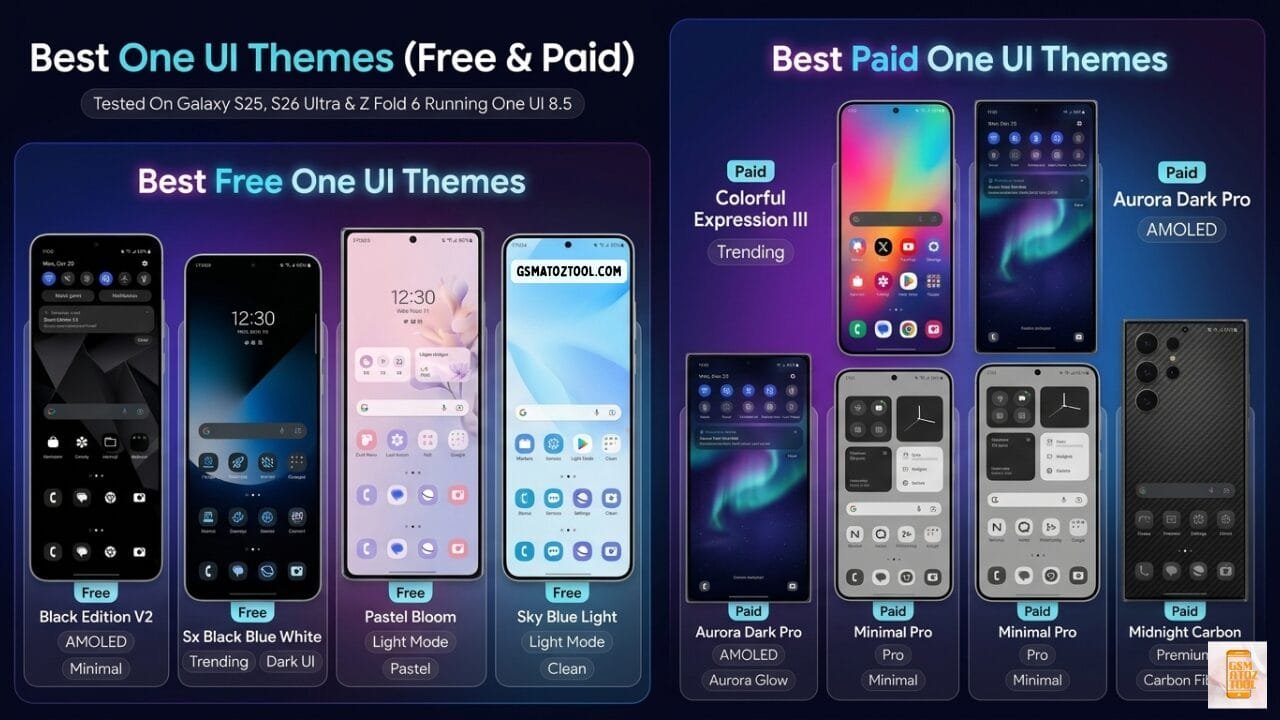
Best free one ui themes include black edition v2 (amoled) sx black blue white (dark ui) pastel bloom (light/pastel) and sky blue light (clean). Top paid themes are colorful expression iii (trending) aurora dark pro (amoled) minimal pro and midnight carbon (premium carbon fiber) — all tested on galaxy s25 s26 ultra & z fold 6.
Best Dark & Amoled One Ui Themes
Dark Themes Are The Most Popular Category In The Galaxy Theme Store — Especially For Samsung Amoled Display Users. They Go Far Beyond The Default Dark Mode.
Why Dark Themes Are Best For Samsung Amoled Displays
Samsung Uses Amoled (active Matrix Organic Light Emitting Diode) Technology In Its Galaxy S And Z Series Phones. On Amoled Screens Pure Black Pixels Are Completely Turned Off — Meaning Zero Power Consumption. A Good Dark One Ui Theme Can Save 30–40% Battery On High Brightness Settings.
Beyond Battery Savings Dark Themes Also Reduce Eye Strain At Night And Make Colors Pop With Much Higher Contrast On Amoled Panels.
Top 5 Dark One Ui Themes
- Black Edition V2 — Pure Black Free Fully Compatible With One Ui 8. Best For Daily Use.
- Aurora Dark Pro — Deep Space Dark With Glowing Accents. Premium Visually Stunning.
- Phantom Dark — Minimal Dark With High-contrast Line Icons. Clean And Professional.
- Void Theme — Absolute Black With Subtle Blue Tones Fully Amoled Optimized.
- Midnight Carbon — Dark Gray Carbon Texture With Premium Aesthetic Feel.
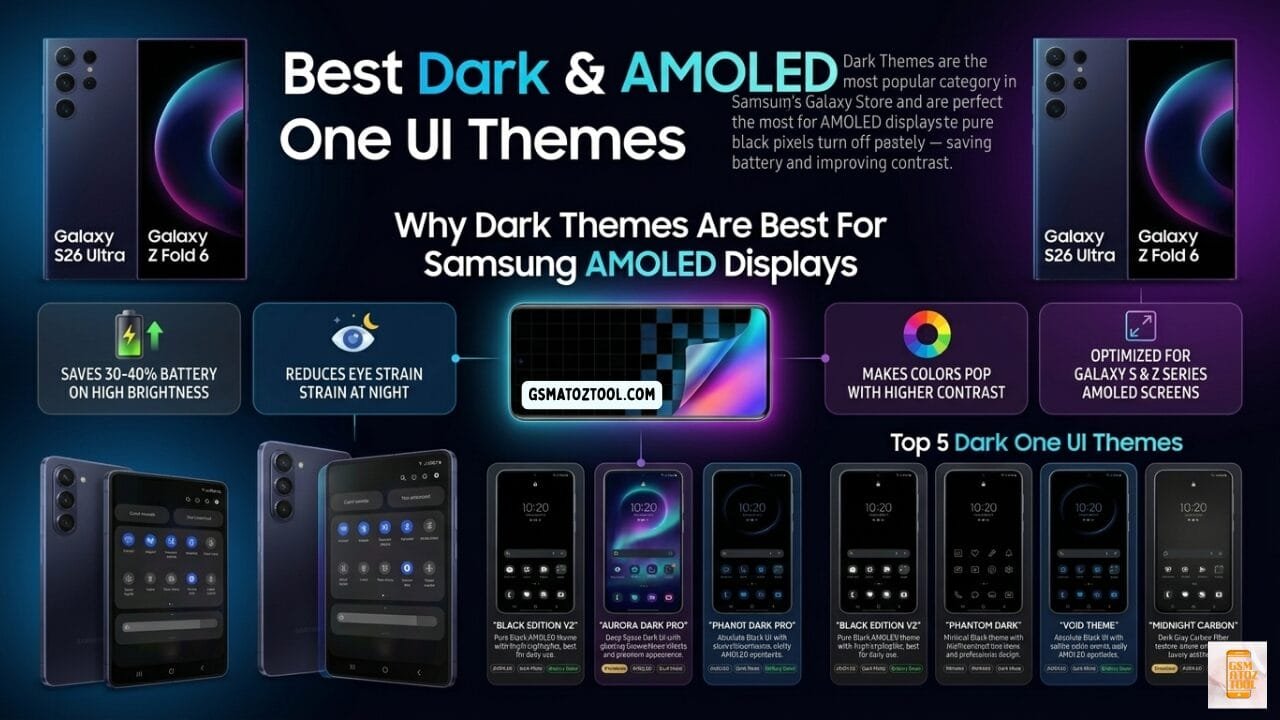
Dark one ui themes are the most popular category in samsung’s galaxy theme store. On amoled displays pure black pixels turn off completely — saving 30–40% battery on high brightness. Top picks include black edition v2 aurora dark pro phantom dark pro void theme and midnight carbon.
One Ui 7 Vs One Ui 8 Themes – Key Differences
Both One Ui 7 And One Ui 8.5 Support Galaxy Themes But There Are A Few Important Differences To Know:
One Ui 7
- Full Theme Support
- Icons Wallpaper Fonts
- Quick Panel Theming
- Keyboard Themes
- Theme Park Supported
One Ui 8 / 8.5
- Everything In One Ui 7
- Samsung Dex Theme Support
- Improved Lock Screen Clock
- Better Color Extraction
- New Badge Color Options
If Your Galaxy Phone Is Running One Ui 8 Or 8.5 You Get The Full Theming Experience. One Ui 7 Users Also Get Excellent Theme Support Almost All Galaxy Theme Store Themes Work On Both Versions.
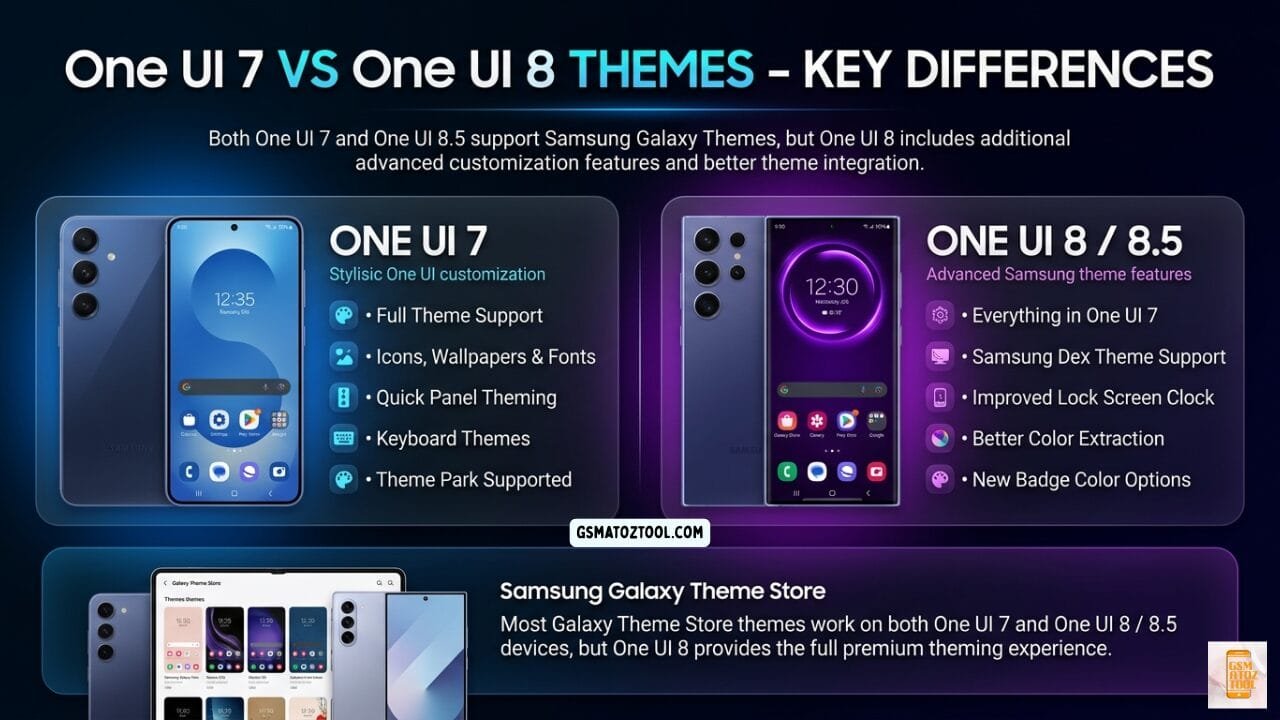
Both one ui 7 and one ui 8. 5 support samsung galaxy themes but one ui 8 adds advanced features like samsung dex theme support improved lock screen clock better color extraction and new badge color options. Most galaxy theme store themes work on both versions.
Pro Tips To Make Your One Ui Theme Look Amazing
Use Samsung Theme Park App
Samsung Theme Park Is An Official App That Lets You Create Your Own One Ui Theme From Scratch. It Automatically Extracts Dominant Colors From Your Wallpaper And Builds A Full Theme — Icons Quick Panel Keyboard And More. Available In The Galaxy Store For Free.
How To Mix & Match Theme Elements
You Don’t Have To Use A Complete Theme Package. In One Ui You Can Apply Different Elements Separately — For Example Take Icons From One Theme And The Wallpaper From Another. This Gives You Thousands Of Unique Combinations That Feel Truly Personal.
Best Wallpaper Tips For One Ui Themes
The Wallpaper Is The Foundation Of Any Good One Ui Theme Setup. Here’s How To Pick The Right One:
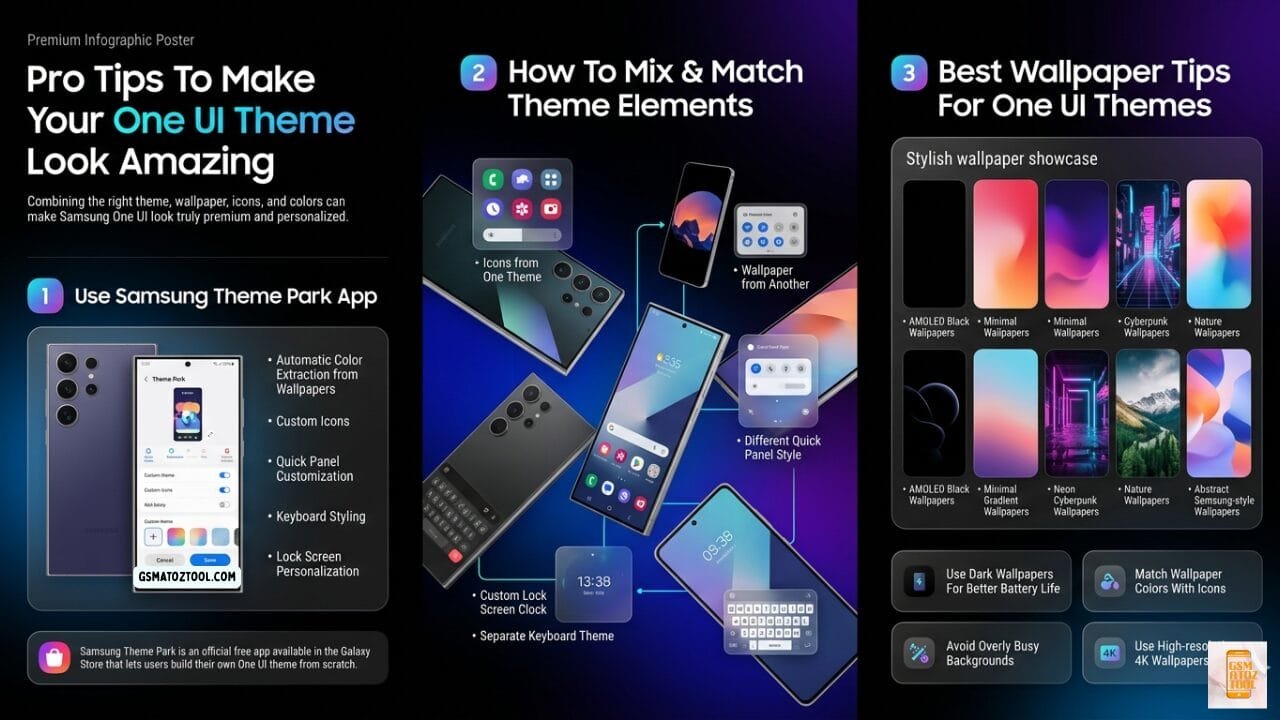
Three pro tips to make your one ui theme look premium: use samsung theme park app for automatic color extraction and custom icons mix icons from one theme with wallpaper from another and choose the right wallpaper — amoled black minimal cyberpunk nature or abstract samsung-style — for a truly personalized galaxy experience.
Frequently Asked Questions (FAQs)
What Are One Ui Themes?
One Ui Themes Are Customization Packages For Samsung Galaxy Phones That Change Your Wallpaper Icons Fonts Quick Panel And Overall System Appearance — All In One Tap From The Galaxy Theme Store.
Are One Ui Themes Free?
Yes Many One Ui Themes Are Completely Free In The Galaxy Theme Store. There Are Also Premium Paid Themes And Most Paid Themes Offer A Free Trial So You Can Test Before Buying.
Do One Ui Themes Work On One Ui 8 And One Ui 8.5?
Yes Most Themes Available In The Samsung Galaxy Theme Store Are Fully Compatible With One Ui 7 One Ui 8 And One Ui 8.5 On Galaxy S And Z Series Devices.
Will Applying A One Ui Theme Slow Down My Samsung Galaxy Phone?
No Applying A One Ui Theme Does Not Slow Down Your Phone. Themes Only Change The Visual Appearance Of Your Ui And Have No Impact On Performance Or Speed.
How Do I Remove A One Ui Theme From My Samsung Galaxy?
Go To Galaxy Theme Store → My Themes → Tap The Default Theme And Hit Apply. This Instantly Reverts Your Phone Back To Samsung’s Original Stock One Ui Look.
Final Verdict
One Ui Themes Are Honestly One Of The Best Features Samsung Offers And Most People Don’t Even Use Them. Whether You Want A Battery-saving Dark Amoled Look A Clean Minimal Aesthetic Or A Bold Colorful Style The Galaxy Theme Store Has Something For Everyone. The Best Part? You Can Start Completely Free Mix And Match Elements And Even Build Your Own Theme With Samsung Theme Park. If You Haven’t Tried One Ui Themes Yet You’re Leaving A Huge Customization Opportunity On The Table. Go Ahead Open Your Galaxy Theme Store Right Now And Transform Your Phone In Just One Tap.