

Blue spots on your phone laptop or monitor screen? Here’s how to identify the cause and fix it before the damage spreads.
Noticing Blue Spots On Screen Can Be Alarming. Whether It Appears On Your Smartphone Laptop Or Monitor A Blue Spot Or Blotch Usually Signals Something Is Not Functioning Correctly Inside The Display Panel.
The Good News Is That Not Every Blue Spot Means Permanent Damage. Some Are Caused By Software Glitches Stuck Pixels Or Temporary Pressure While Others Indicate Physical Damage That Requires Professional Repair.
- In This Detailed Guide You Will Learn:
- What Blue Spots On Screen Actually Mean
- The Real Causes Behind Blue Display Spots
- Proven Troubleshooting Steps You Can Safely Try At Home
- When Screen Replacement Is The Only Real Solution
- Practical Tips To Prevent The Issue In The Future
This Guide Covers Android Phones Iphones Laptops And Desktop Monitors For Users Worldwide.
What Does A Blue Spot On Screen Mean?
A Blue Spot On Screen Usually Indicates Uneven Pixel Behavior Backlight Leakage Or Internal Display Damage. These Spots May:
- Stay Fixed In One Area Without Moving
- Slowly Grow Larger Over Time
- Appear More Clearly On White Or Bright Backgrounds
- Change In Intensity When You Adjust Screen Brightness
Common Colors And What They Suggest
| Spot Color | What It Usually Indicates |
| Blue spot | LCD backlight issue or stuck/dead pixel |
| Pink spot | Pressure damage or OLED pixel failure |
| Purple spot | Internal crack or liquid damage |
| White spot | Backlight bleeding or pressure damage |
These Colors Are Symptoms Not The Root Cause. Identifying The Real Cause Is The Key Before Trying Any Fix.
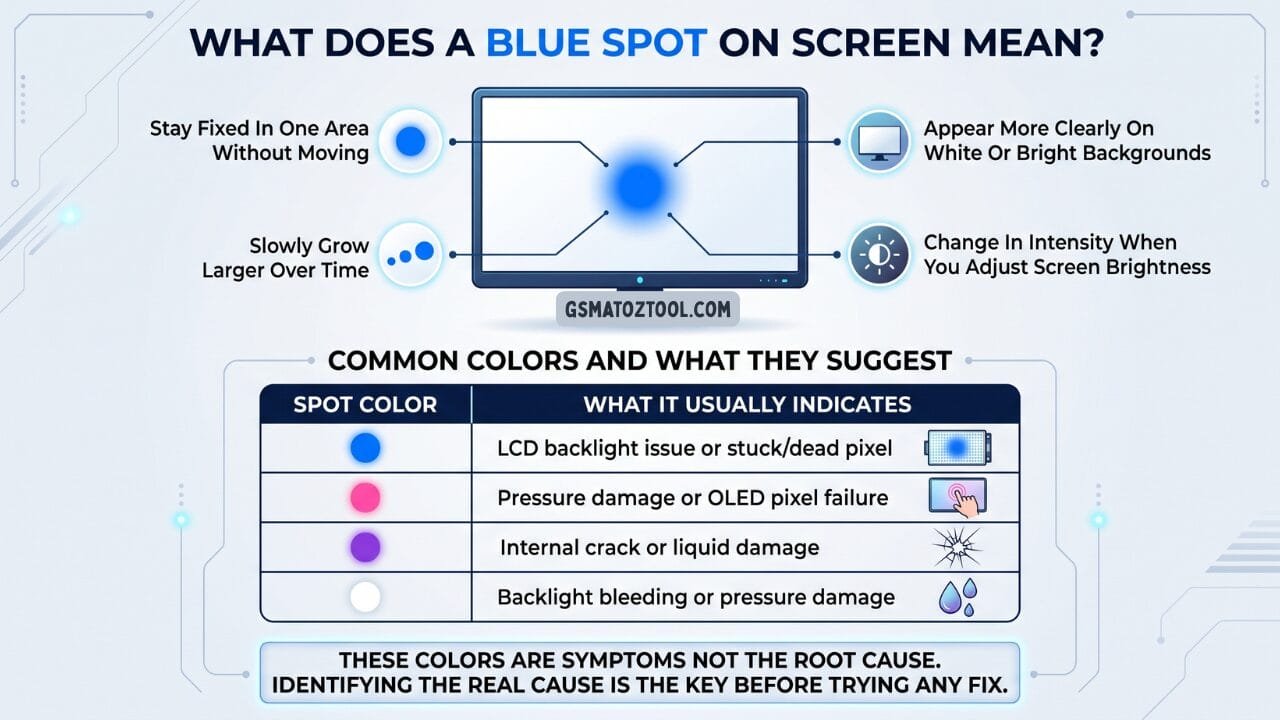
Blue spots on screen can stay fixed grow over time or change with brightness. Common colors like blue pink purple and white each indicate different types of display damage.
Types Of Displays And Why It Matters
Before Fixing Anything It Helps To Understand What Kind Of Screen Your Device Uses Because Causes And Solutions Differ.
LCD Display
- Uses A Backlight Behind Liquid Crystals
- Common In Budget Android Phones Older Laptops And Desktop Monitors
- Blue Or White Spots Are More Common On Lcd Panels
- Backlight Bleeding Is A Frequent Cause Of Blue Patches
OLED or AMOLED Display
- Each Pixel Emits Its Own Light
- Used In Premium Smartphones And Modern Laptops
- Pink Or Purple Blotches Are More Common But Blue Spots Can Also Appear
- Pixel Burn-in And Physical Pressure Are Common Causes
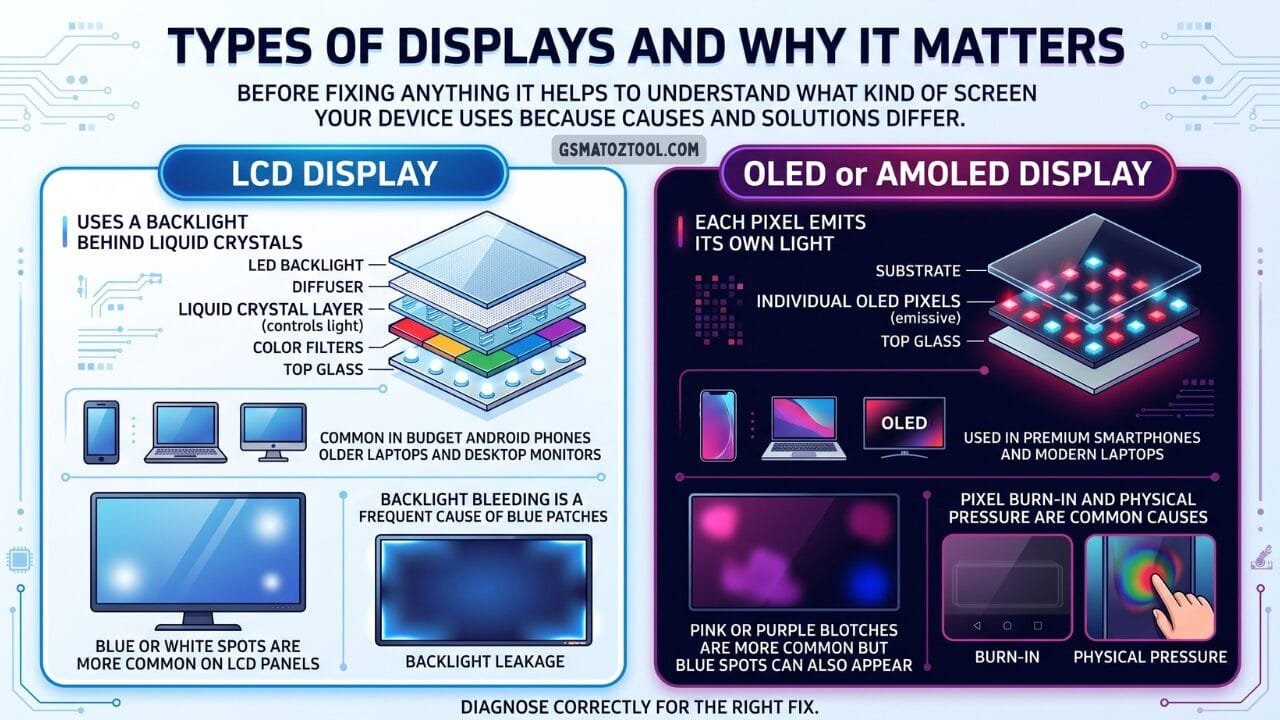
Lcd screens suffer from backlight bleeding causing blue or white spots while oled and amoled displays are prone to burn-in and physical pressure damage. Knowing your display type helps you diagnose and fix the issue correctly.
Main Causes Of Blue Spots On Screen
Physical Impact Or Pressure Damage
This Is The Most Common Cause Of Blue Spots On Screen.
- Phone Dropped On A Hard Surface
- Heavy Object Placed On The Laptop Or Monitor Screen
- Sitting With The Phone In A Tight Pocket
- Excessive Pressure Applied While Cleaning The Screen
Even When The Outer Glass Does Not Crack Internal Display Layers Can Be Seriously Damaged. Many Users Report A Small Blue Or Purple Spot Appearing A Day Or Two After A Drop Which Slowly Spreads.
Liquid Or Moisture Damage
Water Does Not Always Cause Immediate Failure. Moisture Can Seep Inside And Damage Display Circuits Causing Blue Patches That Grow Over Time.
- Rain Or Sweat Exposure
- Accidental Liquid Spills
- Steam In Bathrooms Or Kitchens
- High Humidity Environments
Important: Even Water-resistant Phones Are Not Waterproof Forever. Repeated Exposure Weakens The Seals Over Time.
Dead Or Stuck Pixels
Individual Pixels Can Fail In Different Ways:
- Dead Pixel — Stays Permanently Black
- Stuck Pixel — Stays Fixed On One Color Such As Red Green Or Blue
- Burnt Pixel — Shows Uneven Color Especially In Oled Screens
When Multiple Pixels Fail Together They Appear As A Visible Blue Spot Or Blotch On Your Screen.
LCD Backlight Bleeding
Backlight Bleeding Is Common In Lcd Screens. It Occurs When Light Leaks From The Edges Or Corners Of The Panel.
- Appears As A Glowing Blue Or White Spot Usually Near The Edges
- More Visible In Dark Rooms Or On Dark Backgrounds
- Can Worsen Over Time With Heat And Pressure
OLED Burn-in Or Image Retention
Common In AMOLED And OLED Screens. Blue Spots Or Uneven Color Patches Can Develop Due To:
- High Brightness Used For Long Periods
- Static Images Like Navigation Bars Gaming Huds Or Status Icons
- Watching The Same Content Repeatedly At Maximum Brightness
Display Connector Or Hardware Issue
Sometimes The Screen Itself Is Fine But A Loose Connection Causes The Issue.
- Loose Display Ribbon Cable Or Connector
- Minor Motherboard Fault Or Power Irregularity
- Graphics Card Issue On Laptops Or Desktops
These Can Cause Temporary Color Patches That Flicker Or Change Position.
Manufacturing Defect Or Display Aging
- Older Screens May Develop Color Spots Naturally Over Time
- Rare Factory Defects Can Appear Weeks Or Months After Purchase
- If Your Device Is Under Warranty This Is Important To Document
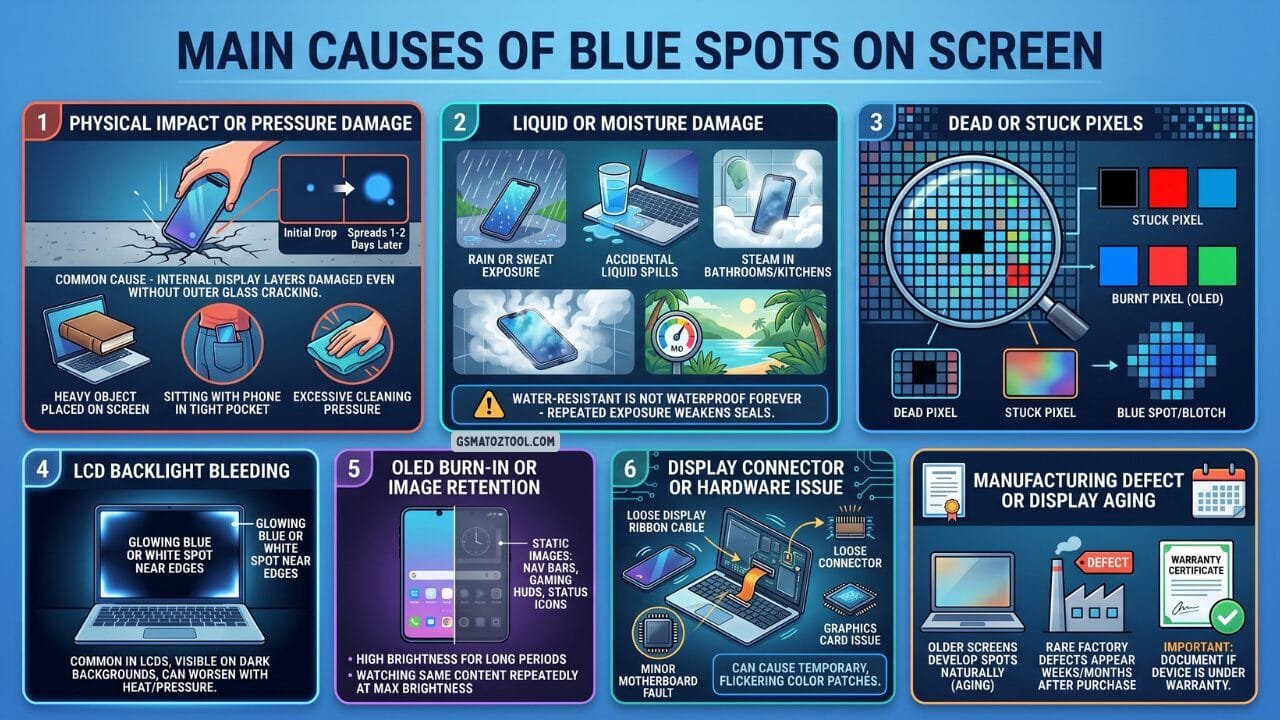
Learn the most common reasons behind blue spots or blotches appearing on mobile laptop and oled/lcd displays
Quick Diagnostic Checklist — Identify The Cause In 1 Minute
Answer Each Question To Understand What Is Most Likely Causing The Blue Spot On Your Screen.
- Did The Spot Appear After A Drop Or Impact? Likely Internal Display Layer Damage
- Did The Spot Appear After Liquid Or Moisture Exposure? Likely Moisture Damage
- Is The Spot Near The Edges Of The Screen? Likely Lcd Backlight Bleeding
- Is The Spot Blue And Fixed In One Small Area? Likely Stuck Or Dead Pixel
- Does The Spot Disappear After A Restart? Possible Software Or Gpu Glitch
- Is The Spot Visible Only On White Or Bright Backgrounds? Likely Burn-in Or Pressure Damage
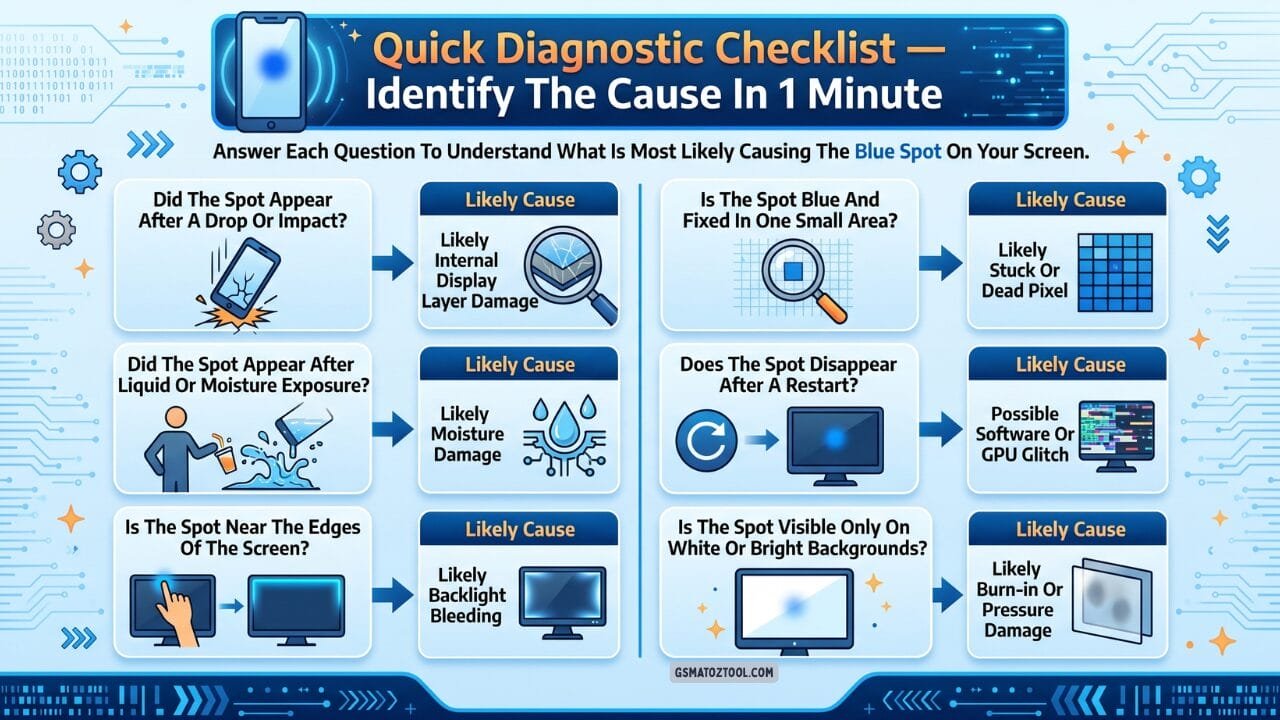
A simple step-by-step checklist to quickly diagnose why blue spots appear on your phone laptop or monitor screen.
Proven Fixes You Can Try at Home (Safe Methods)
Restart the Device
Always Start With A Simple Restart. This Clears Temporary Glitches And Resets Display Drivers. If The Blue Spot Disappears After A Restart It Was Likely A Software Issue And Not Physical Damage.
Check in Safe Mode (Android)
Safe Mode Disables All Third-party Apps. If The Blue Spot Disappears In Safe Mode A Recently Installed App Is Causing The Display Issue. Remove Suspicious Apps One By One To Identify The Culprit.
Update Graphics Drivers (Laptop or PC)
On Laptops And Desktop Computers Outdated Or Corrupted Graphics Drivers Can Cause Color Anomalies. Go To Your Device Manufacturer’s Website And Install The Latest Display Or Gpu Driver For Your Model.
Test With Solid Color Screens
Open Full-screen Color Images Or Use A Display Test App To Check The Screen With:
- White Background
- Black Background
- Red Green And Blue Backgrounds Individually
If The Spot Is Visible On All Colors It Is Hardware Damage. If Visible Only On Certain Colors Or White Backgrounds It May Be Burn-in Or Pressure-related.
Try A Pixel Fix App
These Apps Rapidly Cycle Colors To Attempt To Revive Stuck Pixels. They Work Only For Stuck Pixels And Cannot Repair Physically Damaged Panels.
- Dead Pixels Test And Fix (android) — Tests And Cycles Colors To Unstick Pixels
- Pixel Fixer (android) — Detects Stuck Pixels And Attempts Recovery
- Pixel Control (ios) — Checks Display Uniformity And Helps Identify Stuck Pixels
- Dead Pixel Detect And Fix (ios) — Displays Color Patterns To Spot And Fix Stuck Pixels
Tip: If The Blue Pixel Remains After Using These Apps The Damage Is Likely Permanent And Screen Replacement Will Be Required.
Reduce Screen Brightness
Lowering Brightness For A Few Days Can Help Slow Oled Burn-in And Reduce The Visibility Of Minor Spots. This Does Not Fix Physical Damage But It Can Prevent The Situation From Worsening.
Remove The Case And Let The Device Dry
If Moisture Damage Is Suspected Take These Steps Immediately:
- Power Off The Device Completely
- Remove The Case Sim Tray And Any Accessories
- Place The Device In A Dry Area With Good Airflow For 24 To 48 Hours
Avoid The Rice Method. Rice Does Not Reliably Remove Internal Moisture And Can Leave Dust Inside Ports.
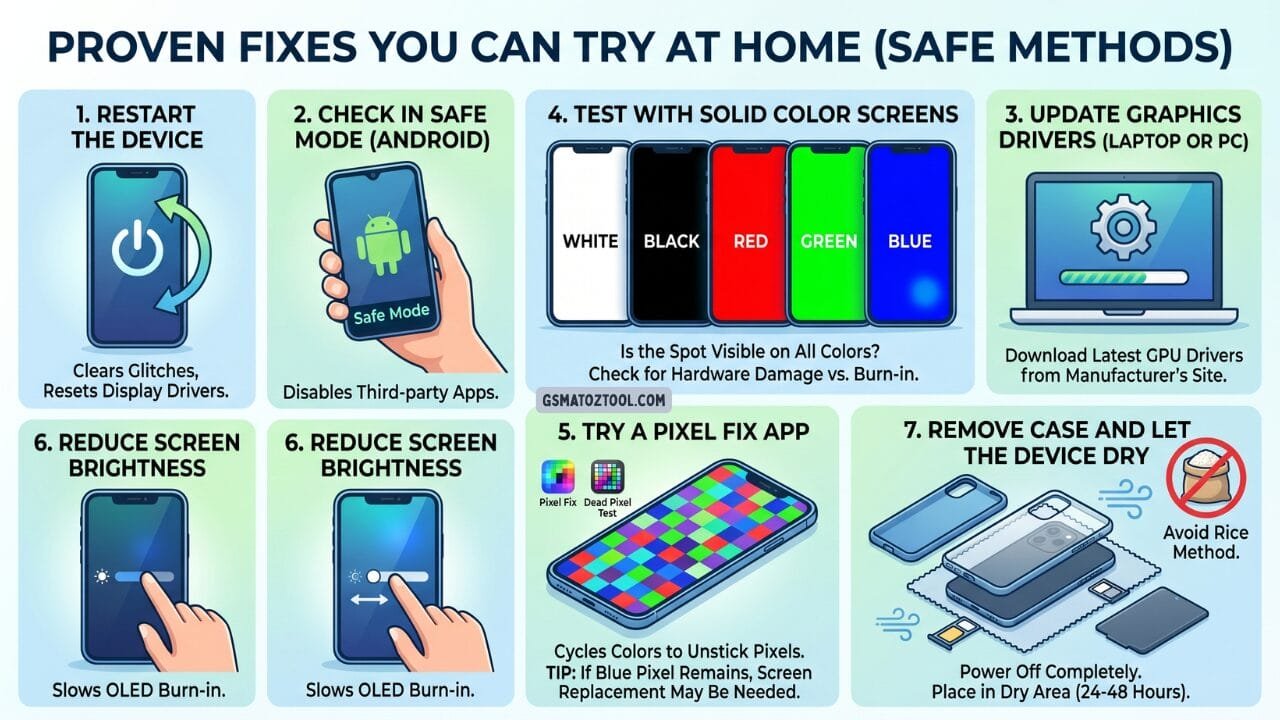
Step-by-step safe troubleshooting methods to reduce or fix blue spots and display issues at home.
What Not To Do — Very Important
Many Online Tips Can Make The Damage Worse. Avoid These Actions Completely:
- Do Not Press Hard On The Blue Spot — This Spreads The Damage To Surrounding Pixels
- Do Not Heat The Screen With A Hair Dryer Or Heat Gun — Heat Permanently Damages Display Components
- Do Not Open The Device Without Proper Tools Or Experience
- Do Not Apply Water Alcohol Or Any Liquid To The Screen Surface
- Do Not Use Third-party Screen Apps For Extended Periods On OLED Screens
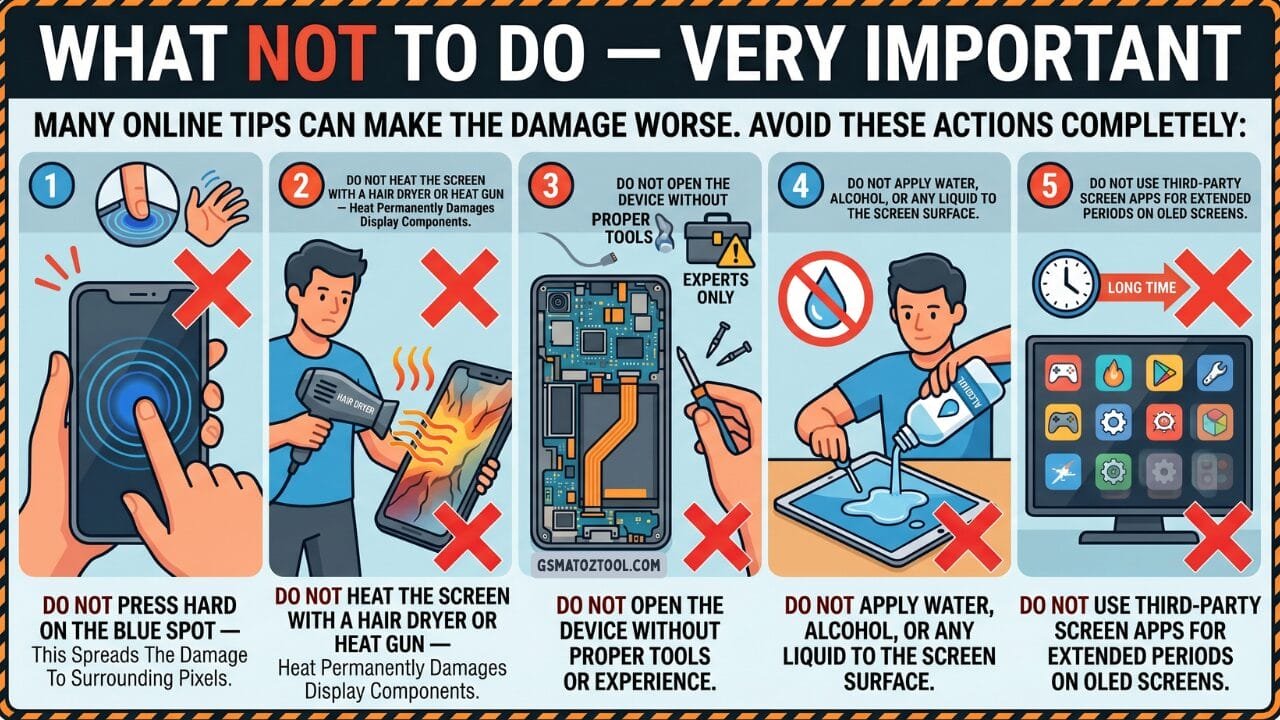
Many online tips can make screen damage worse — avoid these 5 common mistakes entirely.
When Screen Replacement Is The Only Real Solution
Unfortunately Some Blue Spot Cases Cannot Be Fixed At Home. Screen Replacement Becomes Necessary When:
- The Blue Spot Grows Larger Over Time
- Touch Response Stops Working In The Affected Area
- Colors Distort Heavily Across The Screen
- A Dark Or Black Ink-like Blotch Begins To Spread
- The Screen Flickers Constantly Or Goes Completely Dark
For Oled And Amoled Screens Panel Replacement Is The Only Permanent Fix Once Internal Layers Are Damaged.
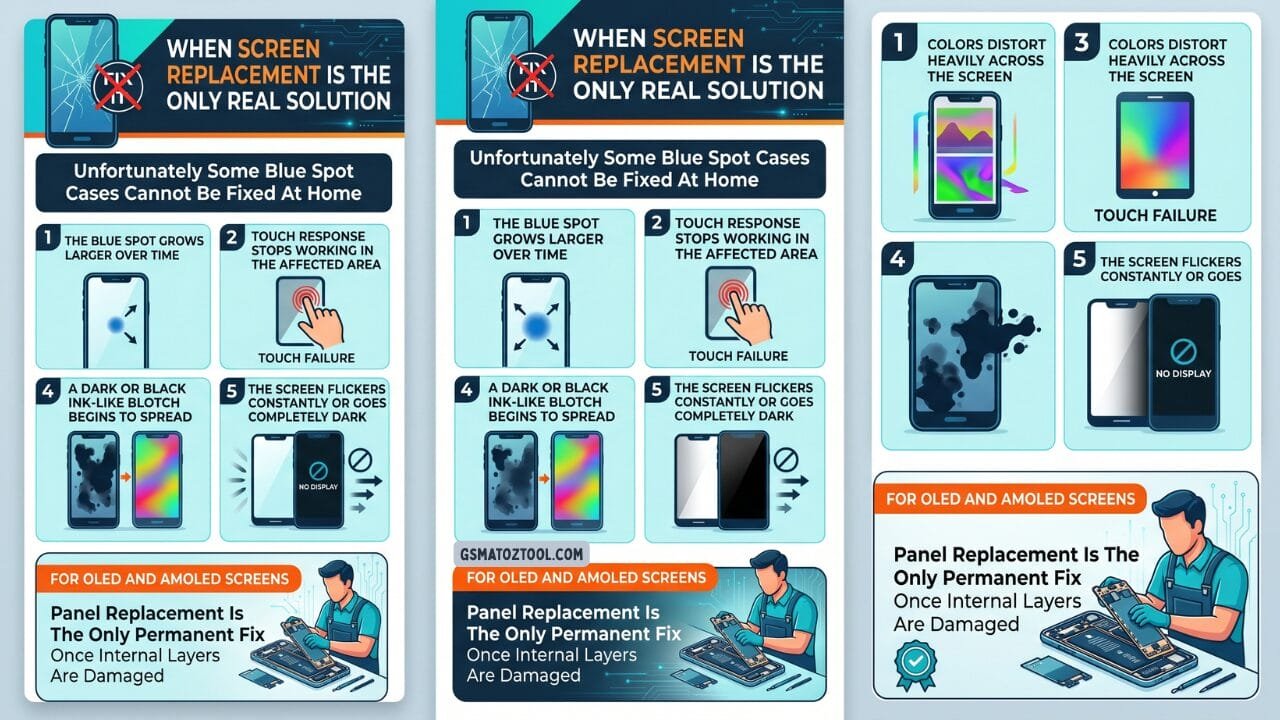
Some blue spot cases go beyond diy fixes — here are the five warning signs that mean it’s time for a professional screen replacement.
Repair vs Replacement — What Makes Financial Sense?
| Situation | Best Option |
| Device is under warranty | Claim warranty repair or replacement |
| Small stuck blue pixel | Try pixel fix app first |
| Spreading blue blotch | Replace the screen panel |
| Old budget device | Consider full replacement |
| Expensive flagship phone or laptop | Screen repair is worth it |
| Backlight bleeding on LCD | Professional calibration or panel replacement |
Simple Rule: If Repair Cost Is Under 40 Percent Of Your Device’s Current Value Repair Makes Sense. If It Exceeds 50 Percent Consider Full Replacement.
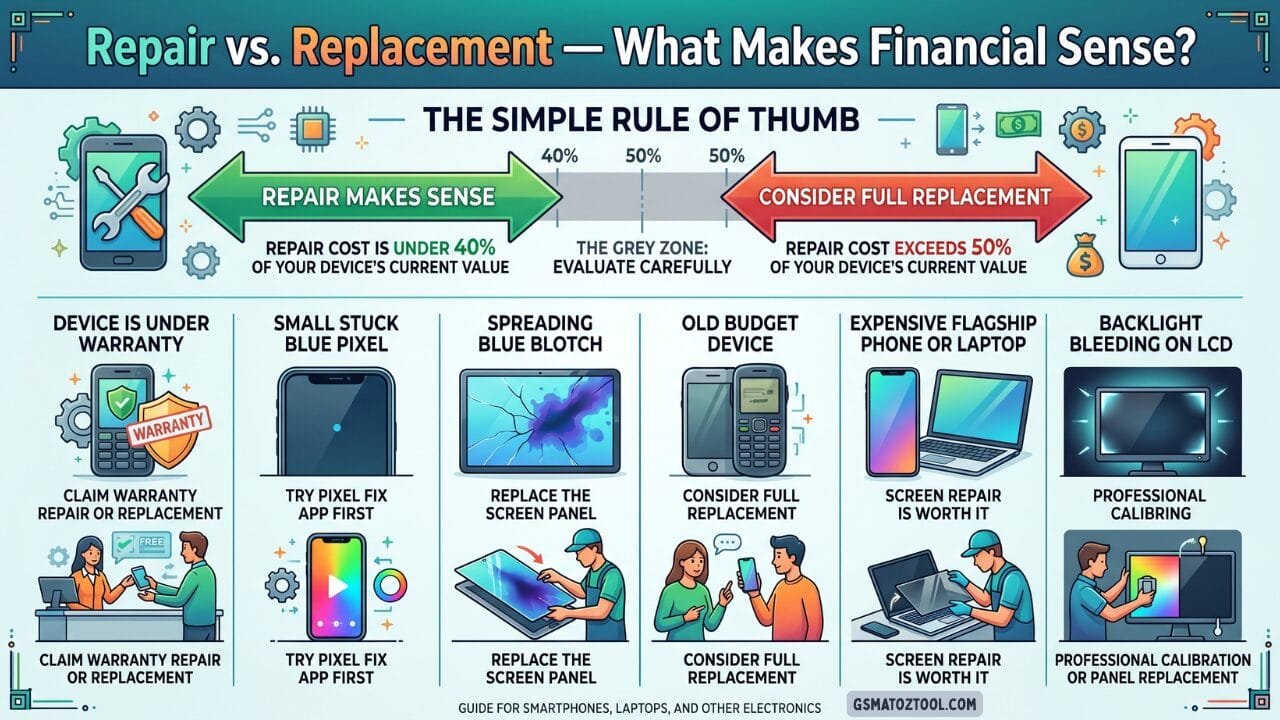
Not sure whether to repair or replace your damaged screen? This simple rule of thumb and six common scenarios help you make the smartest financial decision.
Repair Technician Insight — What Professionals See in Real Life
Based On Common Observations From Display Repair Technicians Blue Spots On Screen Almost Always Point To Internal Panel Damage Rather Than Surface-level Issues.
- Small Blue Spots Rarely Stay Small On Lcd Or Oled Screens — The Damaged Area Tends To Spread
- Backlight Damage From Pressure Often Appears Days After The Incident Not Immediately
- Liquid-damaged Screens Usually Worsen Over Time Even If The Device Seems Functional At First
- Pixel Fix Apps Almost Never Work For Blotches Caused By Physical Impact Or Moisture
- Once A Panel Shows A Spreading Blue Blotch Replacement Is The Only Permanent Solution
This Is Why Technicians Recommend Early Repair Or Data Backup Rather Than Waiting For Complete Display Failure.
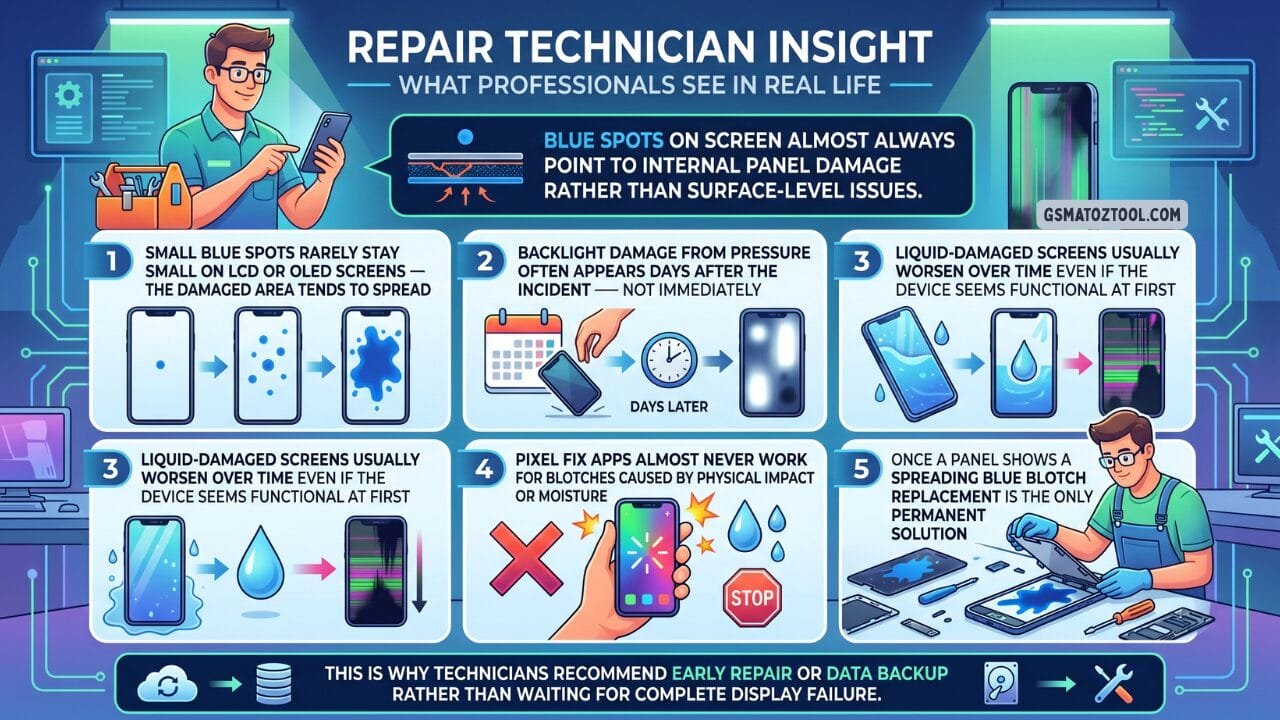
Blue spots on screens are rarely surface-level — here’s what repair technicians actually see when devices come in for service.
Important — Back Up Your Data Before The Spot Gets Worse
A Blue Spot On Screen Is Often An Early Warning Sign Of Display Failure. The Screen May Spread Or Turn Dark Without Warning Making Unlocking Or Using The Device Impossible.
What To Back Up Immediately
- Photos And Videos
- Contacts And Messages
- Whatsapp And Other Chat Application Backups
- Important Documents And Notes
Recommended Backup Methods
- Cloud Backup Using Google Drive Or Icloud
- Transfer Files To A Computer Via Usb Cable
- Export Critical Chats And Data Manually
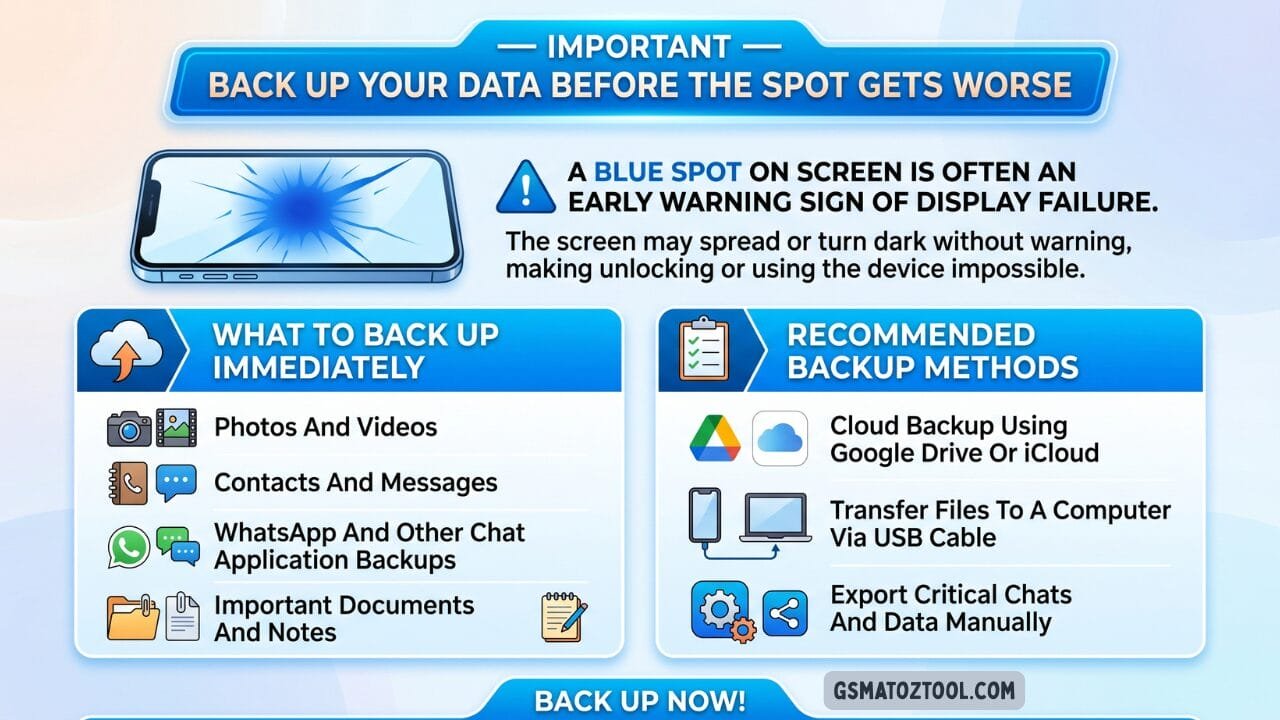
A blue spot on your screen is an early warning sign — back up your data now before the display fails completely.
Temporary Workarounds To Reduce Visibility
If The Device Is Still Usable These Steps Can Improve Daily Usability While You Arrange For Repair.
- Enable Dark Mode To Reduce Screen Contrast
- Use A Black Or Dark Wallpaper To Minimize The Spot’s Visibility
- Reduce Screen Brightness To Lower Stress On Damaged Pixels
- Avoid Static Images For Long Periods To Prevent Further Burn-in
These Are Short-term Measures Only. They Do Not Repair The Damaged Display.
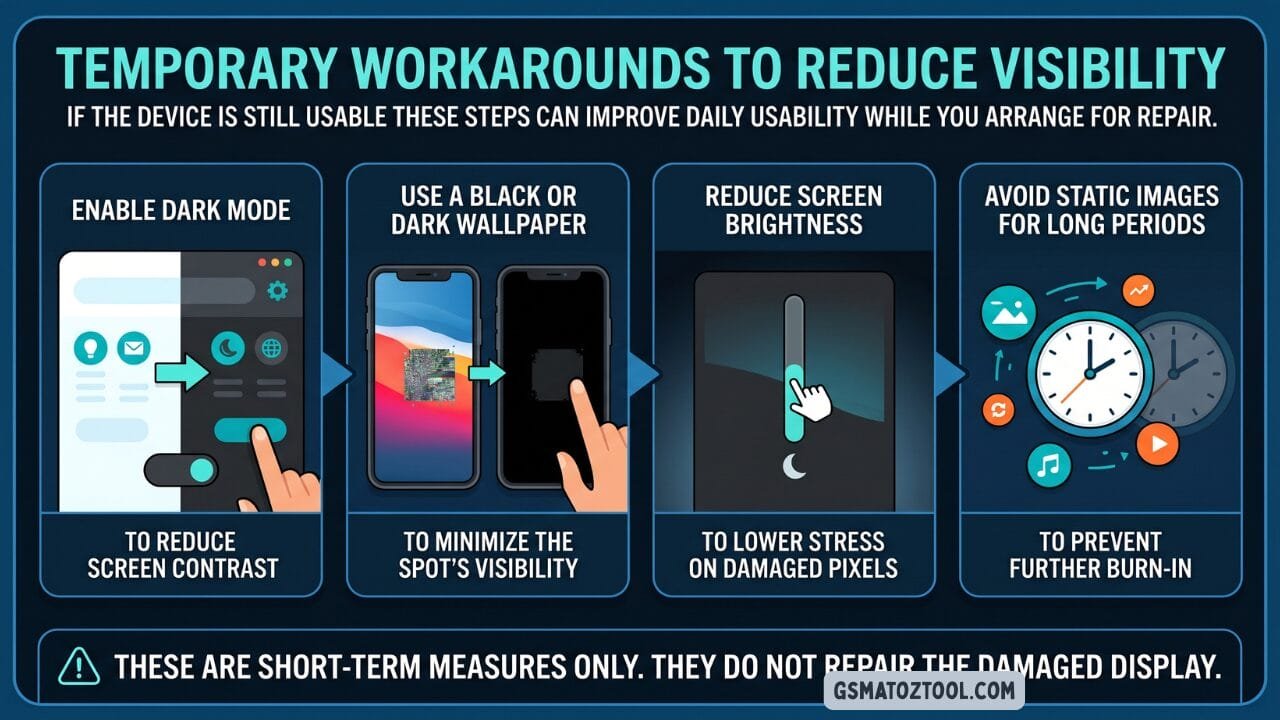
If your screen is still usable these four simple adjustments can improve daily usability while you arrange for a proper repair.
How To Prevent Blue Spots On Screen In The Future
- Use A Good Quality Protective Case With Raised Edges Around The Screen
- Always Apply A Tempered Glass Screen Protector
- Avoid Keeping Devices In Back Pockets Where Pressure Is Applied
- Keep Screen Brightness Below Maximum During Daily Use
- Avoid Exposing Your Device To Moisture Even If It Has Water Resistance Ratings
- Handle Laptops And Monitors Carefully Never Pressing On The Panel Directly
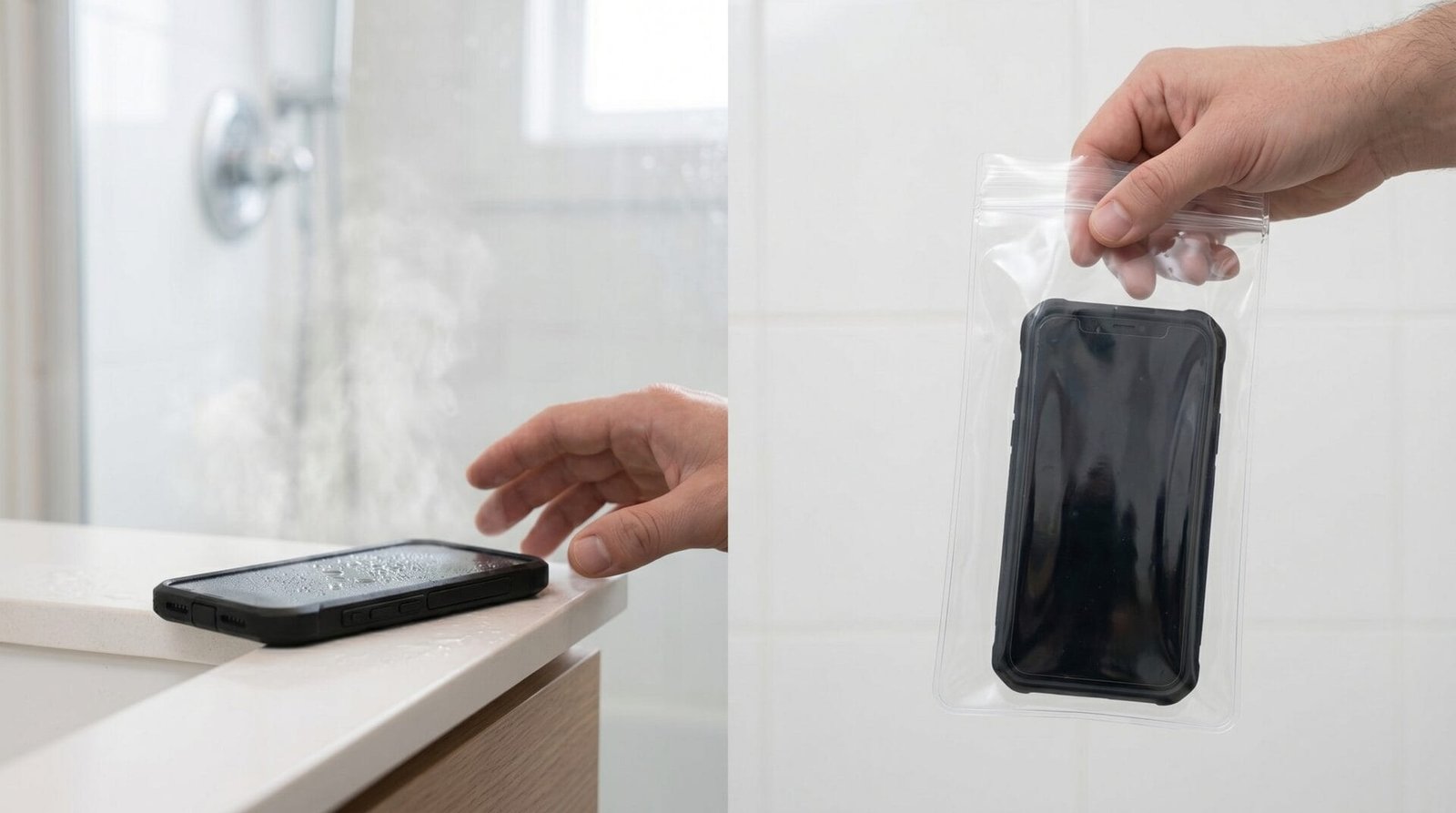
Bathrooms are one of the biggest moisture risks for your phone’s screen — a simple zip-lock bag can make all the difference.
Myths vs Reality About Blue Spots on Screen
Myth — Pressing The Spot Can Fix It
Reality: Pressing Usually Spreads The Damage To Surrounding Pixels And Worsens The Blotch.
Myth — Rice Can Fix Moisture-damaged Screens
Reality: Rice Does Not Remove Internal Moisture Or Stop Corrosion. Use A Dry Ventilated Space Instead.
Myth — Pixel Fix Apps Repair Oled Or Lcd Blotches
Reality: Apps Cannot Repair Physically Damaged Display Layers. They Only Help With Rare Stuck Pixel Cases.
Myth — Heating The Screen Helps
Reality: Heat Can Permanently Damage Display Components And Adhesive Layers Inside The Panel.
Myth — Screen Protectors Cause Blue Spots
Reality: Protectors Do Not Create Internal Display Blotches. Physical Impact Or Moisture Does.
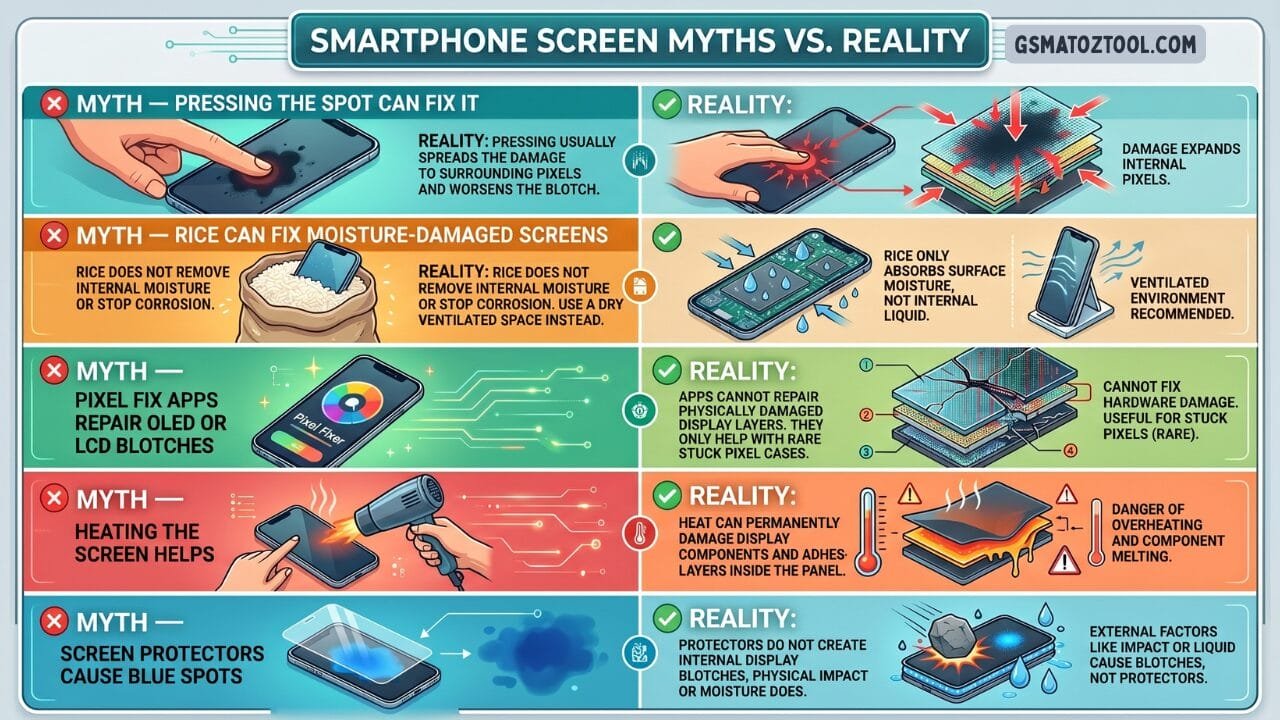
Think pressing the spot fixes it or rice dries out a wet phone? Here are five persistent smartphone screen myths — and what actually happens in reality.
Frequently Asked Questions (FAQs)
Why Does My Screen Have A Blue Spot After Dropping My Phone?
A Drop Can Damage Internal Display Layers Without Cracking The Outer Glass. This Causes Light Distortion That Appears As A Blue Or Purple Spot.
Can A Blue Spot On Screen Go Away On Its Own?
If Caused By A Temporary Software Glitch Or Stuck Pixel It Might Resolve. If Caused By Physical Damage Or Backlight Failure It Will Not Go Away On Its Own.
Is A Blue Spot On An Oled Screen Permanent?
In Most Cases Yes. Oled Pixel Damage Requires Screen Panel Replacement. There Is No Reliable At-home Fix For Oled Blotches Caused By Physical Damage.
Does A Software Update Fix Blue Spots On Screen?
Software Updates Can Fix Display Calibration And Driver-related Color Issues But They Cannot Repair Physical Screen Damage.
Can Liquid Damage Cause Blue Spots Later?
Yes. Moisture Damage Often Appears Days Or Weeks After Exposure And Typically Worsens As Internal Corrosion Progresses.
Should I Repair Or Replace My Device?
If The Repair Cost Is Under 40 To 50 Percent Of Your Device’s Current Value Repair Is Usually The Smarter Choice. Otherwise Replacement May Be More Practical.
Conclusion
A Blue Spot On Screen Is Not Just A Cosmetic Issue. It Is A Clear Signal That Something Inside The Display Panel Is Malfunctioning. Whether Caused By Physical Impact Moisture Backlight Failure Or A Stuck Pixel Understanding The Root Cause Helps You Make The Right Decision. By Trying The Safe Troubleshooting Steps Outlined In This Guide You May Resolve Minor Issues At Home.
However If The Blue Spot Spreads Affects Touch Response Or Worsens Over Time Professional Screen Replacement Is The Only Reliable Fix. Act Early Back Up Your Data And Monitor The Situation Carefully. Your Device Screen Is One Of Its Most Delicate And Expensive Components Taking Care Of It Saves Both Money And Frustration In The Long Run.