
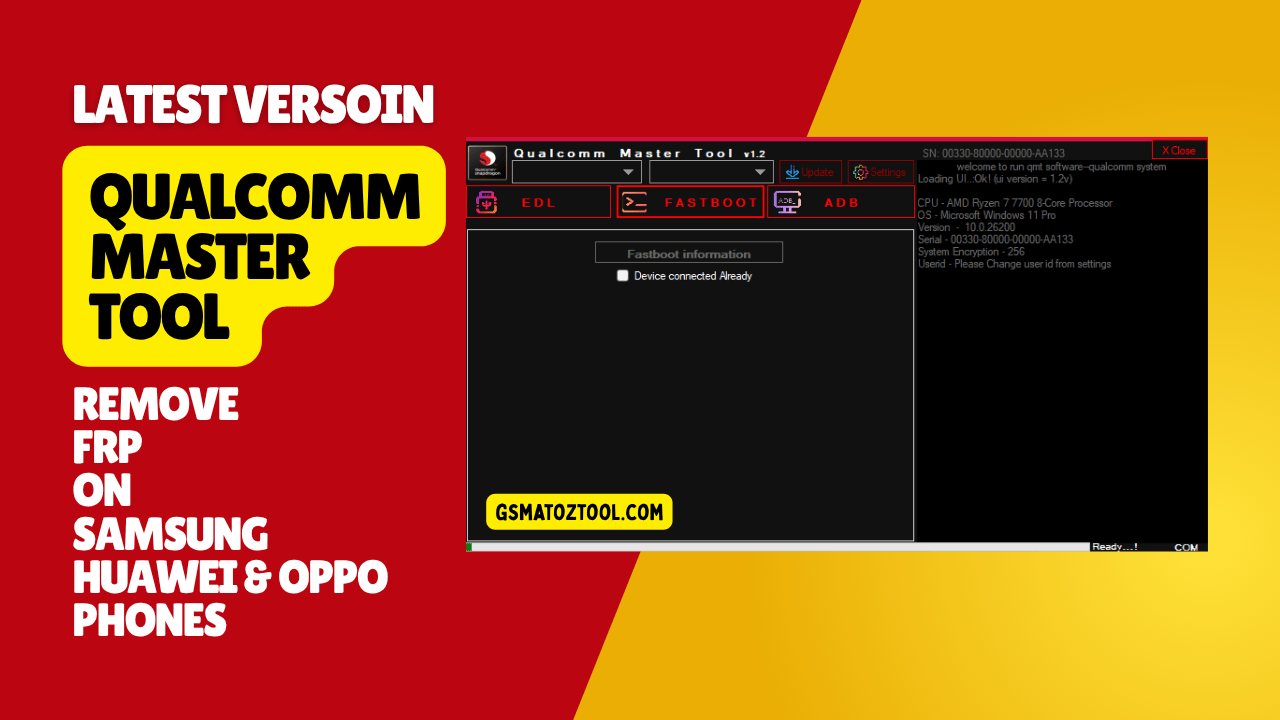
Qualcomm master tool featuring dedicated modules for samsung huawei oppo nokia and xiaomi for frp removal and device formatting.
Ever Stared At Your Phone Screen Showing That Frustrating “this Device Was Reset” Message And Felt Completely Helpless? You’re Not Alone—thousands Of People Get Locked Out Of Their Samsung Huawei Or Oppo Devices Every Day Because Of Frp Protection. Maybe You Bought A Used Phone Forgot Your Google Account Or Factory Reset Without Thinking. Whatever The Reason You’re Stuck With An Expensive Paperweight And Need Answers Fast.
That’s Where The Qualcomm Master Tool Comes In. This Guide Walks You Through Exactly How This Software Works With Edl Mode And Custom Loaders To Bypass Frp Locks On Popular Models Like The Samsung Sm-a015f Huawei Y6 Prime 2018 Oppo R9+ Nokia 6 Ta-1021 And Xiaomi Redmi 4x. We’ll Cover Everything From Accessing Testpoints And Loading Programmers To Clearing Partitions And Rebooting Back To Normal Mode. By The End You’ll Understand Whether This Tool Can Solve Your Specific Problem And How To Use It Safely Without Turning Your Device Into A Brick.
What Is The Qualcomm Master Tool
Look If You’ve Ever Had A Phone Locked With Frp And Felt Completely Stuck You’ll Understand Why The Qualcomm Master Tool Exists. It’s Basically Software That Phone Repair Shops Use To Unlock Qualcomm-based Android Devices. What Makes It Different? Well It Digs Deep Into The Phone’s System Through Something Called Edl Mode—think Of It As A Backdoor That Lets You Access Stuff Regular Users Can’t Touch.
Here’s The Thing Though. This Isn’t Some Magic Button You Just Press. You Need To Physically Open The Device And Short Specific Testpoint Contacts To Boot It Into Edl. Once You’re In The Tool Can Handle Samsung Models Like Sm-a015f Huawei Phones Like The Y6 Prime 2018 And Even Oppo Devices Including The R9+ And A57. It Removes Frp Locks Clears Huawei Ids And Messes With Partitions. But Honestly? It’s Not For Everyone—you Need Some Technical Know-how Or You Might Brick Your Device.
Qualcomm Master Tool Latest Version Free Download
The Newest Version Came Out With Better Support For Android 11 Devices Which Is Great Because Older Versions Struggled With Samsung’s Recent Security Updates. They’ve Added Improved Programmers And Custom Loaders That Actually Work On Sm-a025f And Similar Models. The Adb Functions Let You Reboot From Edl Back To Normal Mode Without Manually Pulling The Battery Which Saves Time.
Now About Downloading It Be Careful Where You Get It From. There’s Tons Of Fake Versions Floating Around That Either Don’t Work Or Worse Contain Malware. Always Backup Your Device Partitions Before Trying Frp Removal Because I’ve Seen People Lose Important Data. And Yeah Using This Tool Voids Warranties Completely. Some Countries Have Legal Restrictions On Bypassing Security Features Too So Check That First. The Testpoint Method Works Best On Older Phones; Newer Models From 2025 Onwards Have Tighter Security That Fights Back Against These Tools Pretty Hard.
Features Qualcomm Master Tool:
EDL
By Custom Loader
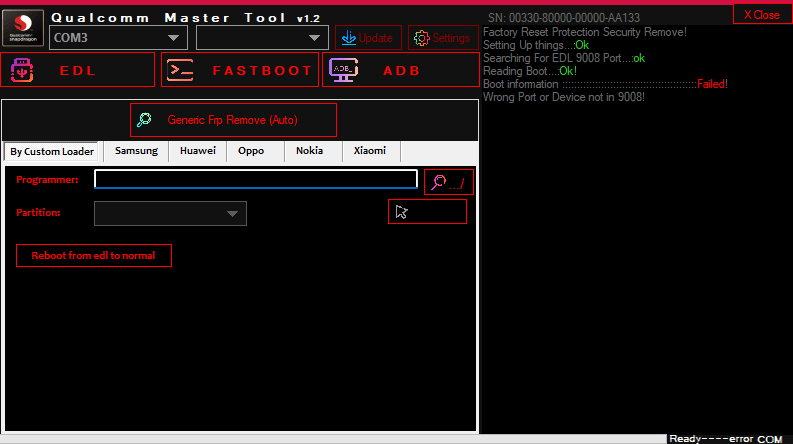
Qualcomm master tool the edl connection mode and custom programmer settings.
- Programmer
- Partition
- Reboot From Edl To Normal
Samsung
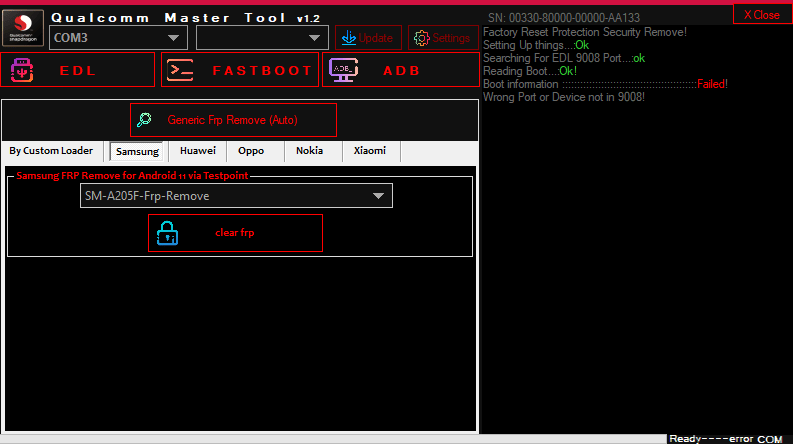
The samsung module in qualcomm master tool v1. 2 highlighting the android 11 frp bypass feature using testpoints.
Samsung Frp Remove For Android 11 Via Testpoint
- SM-A015F
- SM-A015G (Android-11)
- SM-A015M
- SM-A015T
- SM-A015U1
- SM-A015V
- SM-A025F
- SM-A025F (U7 version)
- SM-A025M
- SM-A115F
- SM-A205G
- SM-A205F
- SM-A207F
- SM-M025F
Clear Frp
Huawei
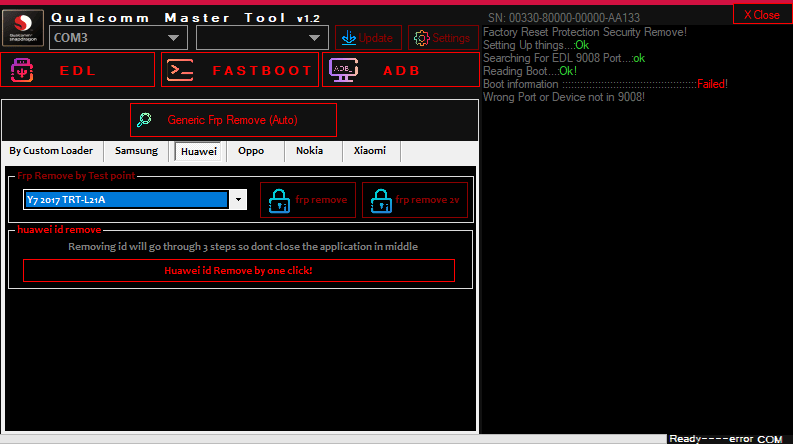
The huawei module in qualcomm master tool testpoint frp removal and one-click huawei id removal.
Frp Remove By Test Point
- Y6 SCC-U21
- Y6 Prime 2018 ATU-L42
- Y6 Prime 2018 ATU-L31
- Y7 Pro 2018 LDN-LX2
- Y7 2017 TRT-L21A
- Y7 2019 DUB-AL00
- Y7 2019 DUB-LX2
- Frp Remove
- Frp Remove v2
Huawei Id Remove
- Huawei Id Remove By One Click
Oppo
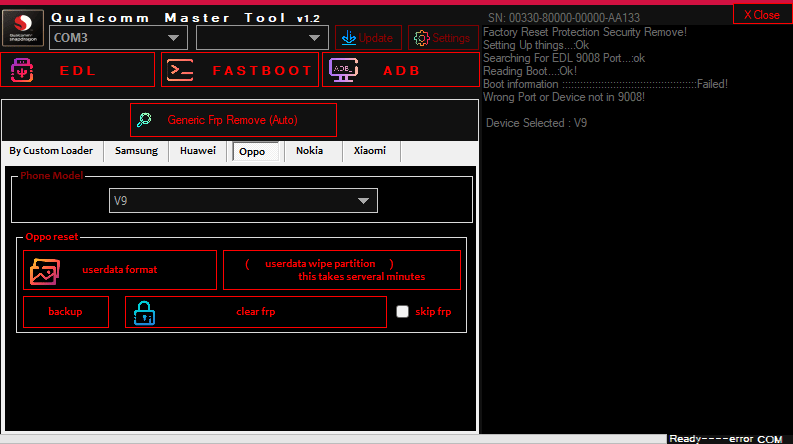
The oppo module in qualcomm master tool v1. 2 highlighting device formatting backup and frp bypass features.
- A5 CPH1809
- A57 CPH1701
- A37F
- A74
- R9
- R9+
- R9s
- V9
Oppo Reset
- Userdata Format
- Userdata Wipe Partition
- Backup
- Clear Frp
- Skip Frp
Nokia
- Nokia 2 TA-1029
- Nokia 6 TA-1021
Frp Remove
Xiaomi
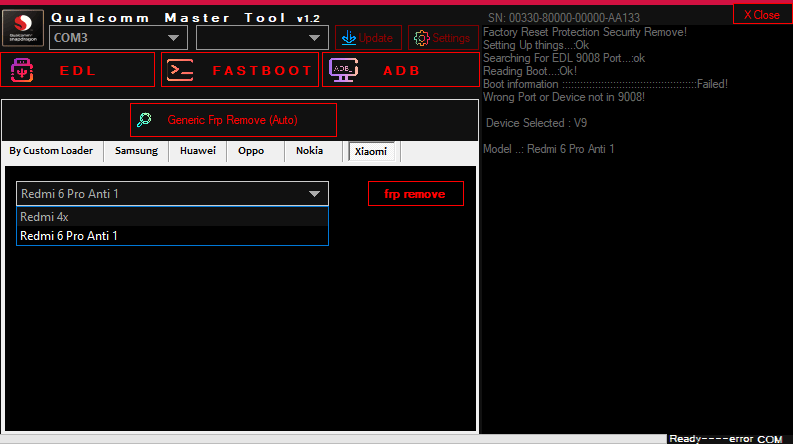
The xiaomi module in qualcomm master tool v1. 2 highlighting model selection and factory reset protection (frp) bypass functionality.
- Redmi 4x
- Redmi 6 Pro Anti 1
Frp Remove
Fastboot
- Fastboot Information
Adb
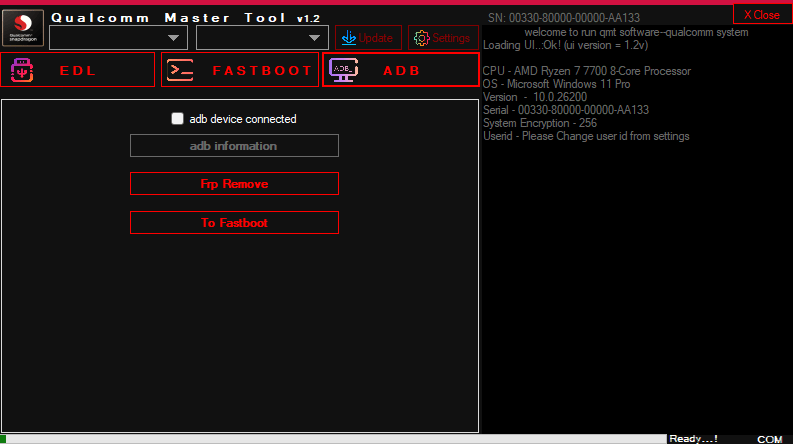
The adb module in qualcomm master tool v1. 2 highlighting features to read device information bypass frp and switch connection modes.
- Adb Information
- Frp Remove
- To Fastboot
How Edl Mode Works With Custom Loaders
Edl Stands For Emergency Download Mode And It’s Basically The Lowest Level Of Access You Can Get On A Qualcomm Device. When Your Phone Boots Into Edl It Completely Bypasses Android And Talks Directly To The Chipset. That’s Where Custom Loaders Come Into Play—they’re Specific Files That Tell The Programmer How To Communicate With Your Exact Device Model.
Think Of It Like This: The Custom Loader Is A Translator Between The Tool And Your Phone’s Hardware. Without The Right Loader The Software Can’t Read Or Write To Critical Partitions Where Frp Data Lives. The Qualcomm Master Tool Includes Programmers For Major Brands But You’ll Need To Select The Correct One For Your Device. Using The Wrong Programmer Won’t Just Fail—it Could Permanently Damage Your Phone’s Firmware.
What Are Programmers And Partitions
Programmers Are Essentially Instruction Sets That Let The Tool Interact With Your Device’s Storage At The Partition Level. Your Phone’s Memory Isn’t Just One Big Chunk—it’s Divided Into Sections Called Partitions. Some Hold The Operating System Others Store User Data And Specific Ones Contain Security Information Like Frp Locks.
The Tool Can Read Write Or Erase These Partitions Depending On What You’re Trying To Do. For Frp Removal You’re Usually Targeting The “frp” Or “config” Partition. For Huawei Id Removal It’s Different Partitions Altogether. The Reboot From Edl To Normal Function Simply Tells The Device To Exit Emergency Mode And Start Up Normally After You’ve Made Your Changes.
Supported Samsung Devices And Frp Removal
Samsung Support Is Probably The Strongest Feature Here Especially For Android 11 Devices That Other Tools Struggle With. The Testpoint Method Works Reliably On Models Like Sm-a015f Sm-a015g Sm-a025f And Sm-a115f. You’ll Find The Testpoints Under The Back Cover Near The Battery Connector—usually Two Small Pads You Short With Tweezers While Plugging In The Usb Cable.
Once You’re In Edl Mode The Tool’s Samsung Frp Removal Function Can Clear The Google Account Verification On These Devices. The U7 Version Of Sm-a025f Needs A Slightly Different Approach But It’s Still Supported. Newer Models Like Sm-a205f And Sm-a207f Work Too Though They Might Need Updated Programmers. Just Remember That Samsung’s Security Gets Tougher With Each Update So Phones Running The Latest 2026 Patches Might Resist Even This Method.
Samsung Clear Frp Process
The Actual Clearing Process Is Pretty Straightforward Once You’ve Got Edl Access. You Load The Appropriate Samsung Programmer Select “Clear Frp” From The Menu And Let The Tool Do Its Thing. It Usually Takes 30 Seconds To A Few Minutes Depending On Your Device. The Tool Overwrites The Frp Partition Data Essentially Making The Phone Forget There Was Ever A Google Account Linked To It.
After The Process Completes Don’t Just Yank The Cable Out. Use The “Reboot From Edl To Normal” Option To Safely Restart Your Device. When It Boots Up You Should Be Able To Set It Up As A New Phone Without Any Account Verification. If It Still Asks For The Account Something Went Wrong—maybe The Wrong Programmer Or A Corrupted Partition.
Huawei Frp And Id Removal Capabilities
Huawei Devices Are A Bit Trickier Because They’ve Got Two Separate Locks To Worry About: Google Frp And Huawei Id. The Good News? This Tool Handles Both Through Testpoint Access. Models Like Y6 Scc-u21 Y6 Prime 2018 (atu-l42 And Atu-l31) And Various Y7 Versions All Have Documented Testpoints That Boot Them Into Edl.
The Frp Removal Has Two Versions—regular And V2. Version 2 Works Better On Newer Firmware Where The Standard Method Fails. For Huawei Id Removal There’s Actually A One-click Option That’s Surprisingly Effective. It Clears The Huawei Account Registration From The Device Without Touching Your User Data Though Backing Up First Is Always Smart.
Huawei Testpoint Locations
Finding Testpoints On Huawei Phones Isn’t Too Hard If You Know Where To Look. On The Y6 Prime 2018 They’re Located On The Motherboard Near The Volume Button Flex Cable. The Y7 Pro 2018 Has Them Close To The Battery Connector. You’ll Need To Remove The Back Cover And Sometimes A Shield Plate To Access Them.
Short The Two Testpoint Pads With Metal Tweezers Or A Precision Screwdriver While Connecting The Phone To Your Pc. Hold Them For About 2-3 Seconds Until Windows Recognizes A Qualcomm Device. That’s Your Sign You’re In Edl Mode And Ready To Use The Tool.
Oppo Device Support And Reset Functions
Oppo Support Covers Popular Models Like A5 (cph1809) A57 (cph1701) A37f A74 And The Entire R9 Series Including R9+ R9s And V9. These Phones Respond Well To The Tool’s Reset Functions Which Go Beyond Just Frp Removal. You Can Format Userdata Wipe Specific Partitions Create Backups Before Making Changes And Skip Frp Entirely During Setup.
The Backup Function Is Honestly Underrated. Before Trying Anything Risky Back Up Your Critical Partitions To Your Computer. If Something Goes Sideways You Can Restore From Backup Instead Of Ending Up With A Dead Phone. The Userdata Format Is Cleaner Than A Factory Reset Because It Directly Erases The Partition Rather Than Relying On Android’s Reset Function.
Oppo Frp Skip Vs Clear
There’s A Difference Between Clearing And Skipping Frp On Oppo Devices. Clearing Completely Removes The Frp Data From The Partition—the Lock Is Gone Permanently. Skipping Just Bypasses The Verification Screen During That Specific Setup But The Lock Data Remains On The Device. If You Factory Reset Again Later You’ll Face The Same Frp Screen.
For A Permanent Solution Always Use The Clear Frp Option. Skipping Is More Like A Temporary Workaround That Gets You Into The Phone But Doesn’t Actually Solve The Underlying Problem. Most People Want The Permanent Fix So Go With The Clear Function Unless You Specifically Need To Preserve Something In That Partition.
Nokia And Xiaomi Device Compatibility
Nokia Support Is More Limited Compared To Other Brands With Confirmed Compatibility For Nokia 2 (ta-1029) And Nokia 6 (ta-1021). These Devices Use Qualcomm Chipsets So They Respond To Edl Mode Access. The Frp Removal Process Is Similar To Samsung—boot Into Edl Via Testpoint Load The Nokia Programmer And Execute The Removal Command.
Xiaomi Support Focuses On Older Models Like Redmi 4x And Redmi 6 Pro With Anti-rollback Version 1. Newer Xiaomi Phones Have Tighter Security That Makes Edl Access Much Harder. The Anti-rollback Feature Is Designed To Prevent Exactly What This Tool Does So You’ll Hit A Wall On Devices With Anti 2 Or Higher. If You’ve Got A Newer Xiaomi You Might Need To Look At Alternative Methods Like Adb Or Fastboot Workarounds.
Working With Fastboot And Adb
The Tool Includes Fastboot And Adb Information Modules That Help You Diagnose Device Status And Switch Between Modes. Fastboot Mode Is Less Invasive Than Edl But Also Less Powerful—you Can Unlock Bootloaders And Flash Some Partitions But Can’t Bypass Frp Directly. The Adb Section Gives You Device Information And Lets You Remove Frp On Certain Devices Where A Simple Command Still Works.
The “to Fastboot” Option Is Useful When You Need To Switch From Edl Mode To Fastboot Without Fully Rebooting The Device. This Comes In Handy For Multi-step Unlocking Procedures Where You Need Different Access Levels. Just Know That Adb-based Frp Removal Only Works On Phones Running Older Android Versions Or Those With Specific Security Vulnerabilities.
Frequently Asked Questions
Can I Use Qualcomm Master Tool Without Opening My Phone?
No You Need Physical Access To The Device’s Testpoints Which Requires Removing The Back Cover. There’s No Wireless Or Software-only Method For Edl Access.
Will This Tool Work On Samsung Galaxy S Series Phones?
It Depends On The Model And Firmware. Older S Series Devices Might Work But Newer Flagship Models Have Enhanced Security That Blocks Edl-based Frp Removal Completely.
Does Using This Tool Delete All My Photos And Data?
Not Necessarily. Frp Removal Only Touches Security Partitions But Userdata Format Or Partition Wipes Will Erase Everything. Always Back Up First If Your Data Matters.
Why Does My Phone Show “Sahara Communication Failed” Error?
This Usually Means You Selected The Wrong Programmer For Your Device Model Or The Custom Loader Is Corrupted. Double-check Your Device Model And Download Fresh Loader Files.
Is Qualcomm Master Tool Safe To Download?
Only If You Download From Trusted Sources. Many Fake Versions Contain Malware Or Broken Programmers That Can Brick Your Device. Verify File Checksums Before Using.
Conclusion
The Qualcomm Master Tool Gives You Powerful Options For Dealing With Frp Locks And Security Barriers On Qualcomm-based Devices But It’s Definitely Not A Simple Consumer-friendly Solution. You Need Technical Skills Patience And Willingness To Take Risks With Your Hardware. For Samsung Huawei And Oppo Devices From 2020-2024 It Works Remarkably Well When Used Correctly.
Just Remember That This Is Serious Business. You’re Manipulating Low-level Firmware That Can Permanently Damage Your Phone If Handled Carelessly. Always Verify Your Device Model Use The Correct Programmer Maintain Stable Connections And Back Up Critical Partitions Before Starting. And Please Only Use This On Devices You Legitimately Own—bypassing Security On Stolen Phones Isn’t Just Unethical It’s Illegal. If You’re Uncomfortable With Any Of This Take Your Device To A Professional Repair Shop Instead Of Risking A Brick. Done Right Though This Tool Can Bring A Locked Phone Back To Life When Nothing Else Works.
How To Download
To Download Qualcomm Master Tool Follow These Steps:
- Go To The Gsmatoztool.com Website Of Qualcomm Master Tool.
- Find The Download Page And Don’t Click Button And Click Only The (Download Link)
- Below Buttons Are Advertisements. Please Use The Download Links Above.
- Wait For The Download To Complete.
- Locate The Downloaded File On Your Device Once The Download Is Finished.
- Double-click On The File To Start The Installation Process.
- Follow The On-screen Instructions To Complete The Installation.
Qualcomm Master Tool
Download Link:: Usersdrive – Mediafire – 4shared – My.pcloud – Mega – Vexfile – Google Drive