
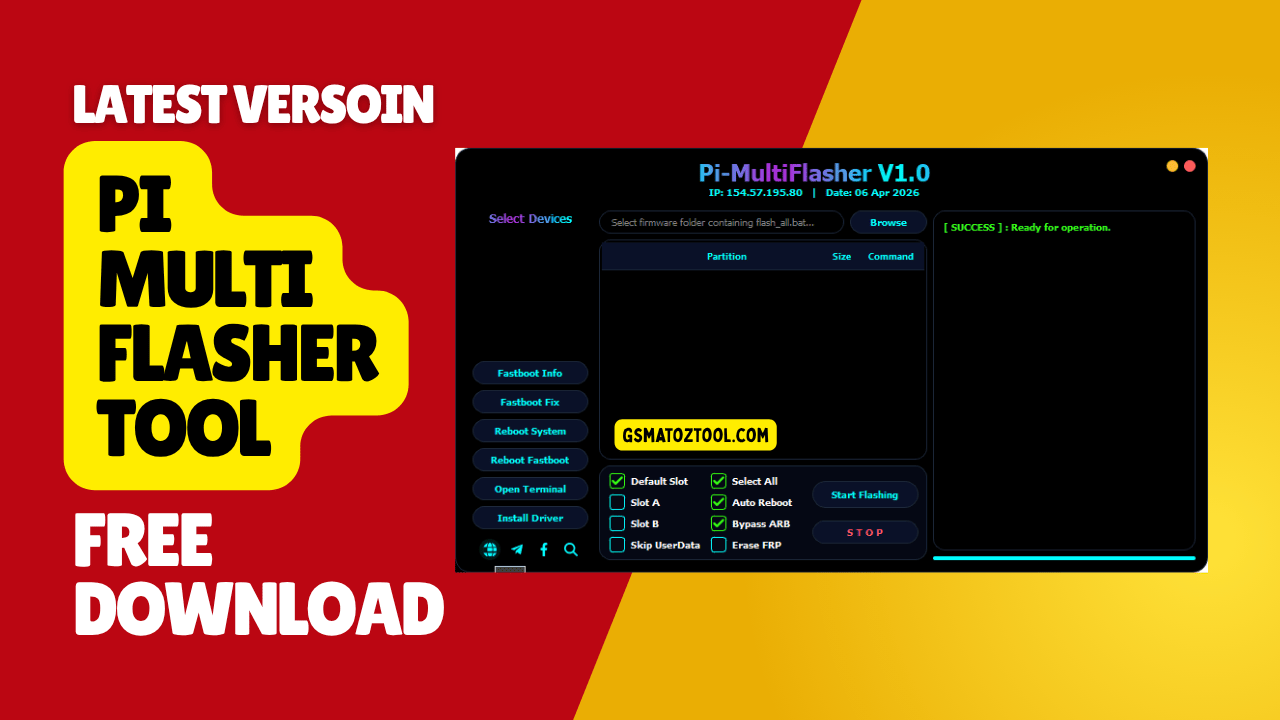
The pi multiflasher tool main dashboard displays device selection fastboot controls partition management and one-click flashing options including skip userdata auto reboot bypass arb and erase frp features.
Look We’ve All Been There You’re Trying To Flash Your Android Phone And Suddenly It’s Stuck In Fastboot Mode Like It’s Having Some Kind Of Existential Crisis. You’re Clicking Around Googling Random Error Codes At 2 Am And Honestly Just Praying Your Phone Isn’t About To Turn Into An Expensive Paperweight. It’s Frustrating As Hell Especially When You Just Want To Install A Custom Rom Or Fix A Bootloop Without Needing A Computer Science Degree.
Good News Though The Pi Multiflasher Tool Is Basically The Friend Who Actually Knows What They’re Doing. This Thing Handles All The Annoying Fastboot Stuff So You Don’t Have To Pull Your Hair Out. Need To Check If Your Device Is Even Connected Properly? Done. Want To Flash New Firmware But Keep All Your Photos And Apps? Yep It Can Do That Too. From Fixing Fastboot Errors Automatically To Removing That Pesky Google Account Lock It’s Got Pretty Much Everything In One Spot. Stick Around Because I’m Gonna Walk You Through Exactly How This Tool Can Make Your Life Way Easier.
What Is The Pi Multiflasher Tool
The Pi Multiflasher Tool Is Basically A Windows Program That Makes Flashing Android Phones Actually Bearable Instead Of A Nightmare. It’s Built For People Who Got Their Phone Stuck In Fastboot Or Need To Install Firmware Without Losing Their Minds. You Don’t Need To Be Some Tech Wizard Typing Commands Into A Black Terminal Window—everything’s Right There With Buttons You Can Actually Understand. It Works With Those Newer A/b Slot Devices Too So Whether Your Phone Uses Slot A Slot B Or Just A Default Slot You’re Covered.
The Whole Thing Shows You What’s Connected What’s Happening And Fixes Common Errors Without You Doing Much. Here’s The Thing Most Flashing Tools Are Either Too Simple And Useless Or So Complicated You Need A Youtube Tutorial Just To Open Them. This One Hits That Sweet Spot.
You Can See Detailed Device Information Right When You Plug Your Phone In Check If The Connection’s Actually Working And Even Access A Built-in Terminal If You Need To Run Your Own Commands. It Automatically Repairs Those Annoying Fastboot Errors That Pop Up Out Of Nowhere And When You’re Done Flashing It’ll Restart Your Device Into Normal Mode Automatically. No Babysitting Required. Plus It’s Got Features For Serious Stuff Like Bypassing Anti-rollback Protection Or Removing Factory Reset Protection When You’re Locked Out Of A Phone.
Download The Pi Multiflasher Tool Latest Version
Downloading This Tool Isn’t Rocket Science But Don’t Just Grab It From The First Sketchy Forum Post You Find On Page Three Of Google. Stick To The Official Source Or Trusted Android Communities Because You Really Don’t Want To Install Something That’s Been Tampered With. Once You’ve Got The File The Installation Is Pretty Quick. You Might Need To Install Some Usb And Android Drivers First But The Tool’s Got A One-click Option That Handles That For You.
Seriously Use It. Nothing’s More Annoying Than Spending An Hour Troubleshooting Why Your Computer Won’t Recognize Your Phone Only To Realize You Forgot The Drivers. Before You Start Messing Around With Anything Plug In Your Phone And Check The Fastboot Info Section. This Shows You If Everything’s Actually Connected Properly And Gives You Real-time Status Updates. I Can’t Tell You How Many People Skip This And Wonder Why Their Flash Failed Halfway Through.
The Partition Table Feature Is Also Worth Checking Out—it Displays All Your Partition Names Sizes And What Commands Are Being Used. When You’re Ready To Flash You Can Use The Select All Option To Grab Everything At Once Instead Of Clicking Through A Million Checkboxes. And If You Need To Flash Something But Don’t Want To Delete All Your Photos Messages And Apps Just Turn On Skip Userdata. Your Personal Stuff Stays Safe While The System Gets Updated. The Auto Reboot Feature Takes Care Of Restarting Everything Once It’s Done So You Can Literally Walk Away And Come Back To A Working Phone.
Features Pi MultiFlasher Tool
- Fastboot Info: View Detailed Device Information And Connection Status.
- Fastboot Fix: Automatically Repair Common Fastboot Mode Errors.
- Reboot System: Restart The Device Into Normal Android Mode.
- Reboot Fastboot: Restart The Device Back Into Fastboot Mode.
- Open Terminal: Access The Built-in Command Prompt For Manual Commands.
- Install Driver: Quick Setup For Required Usb And Android Drivers.
- Slot Management: Full Support For Slot A Slot B And Default Slot (for A/b Devices).
- Skip Userdata: Option To Flash Firmware Without Deleting Personal Data.
- Select All: Select All Partitions And Files For Flashing In One Click.
- Auto Reboot: Automatically Restarts The Device Once The Flashing Process Is Complete.
- Bypass Arb: Bypass Anti-rollback Protection To Allow Older Firmware Installation.
- Erase Frp: Remove Factory Reset Protection (google Account Lock).
- Partition Table: Displays Real-time Partition Names Sizes And Commands.
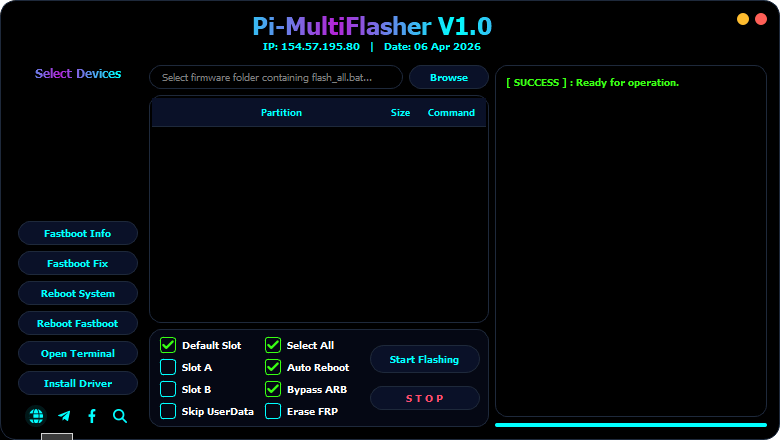
The pi multi flasher tool provides a centralized dashboard for flashing firmware and repairing multiple devices
How To Fix Common Issues
So Your Phone’s Bootlooping And You’re Panicking—totally Normal Reaction By The Way. First Thing You Do Is Boot Into Fastboot Mode (usually By Holding Volume Down + Power When The Phone’s Off) Then Connect It To Your Computer. Open The Pi Multiflasher Tool And Wait For It To Recognize Your Device. If Nothing Shows Up Hit That Install Driver Button And Let It Do Its Thing. Once You See Your Device Info Pop Up You’re Good To Go. For A Bootloop You’ll Usually Want To Flash The Full Stock Firmware Which Means Selecting All Partitions And Files.
Just Make Sure You’ve Downloaded The Right Firmware For Your Exact Phone Model First—flashing The Wrong One Is How You Actually Brick A Phone.
Factory Reset Protection Is Another Headache People Run Into Constantly. You Forgot Your Google Account Password Or You Bought A Used Phone That’s Still Locked To Someone Else’s Account. The Erase Frp Option Cuts Through All That. It Removes The Google Account Lock So You Can Set Up The Phone Like It’s Brand New. Just Remember This Won’t Help If The Phone Is Stolen Carriers And Google Have Other Protections For That. If You’re Trying To Downgrade Your Phone To An Older Version And Keep Hitting Anti-rollback Errors The Bypass Arb Feature Is What You Need. It Lets You Install Older Firmware Even When Your Phone’s Security Settings Normally Wouldn’t Allow It. Use This Carefully Though Because There’s Usually A Reason Anti-rollback Protection Exists.
Tips For Safe Flashing
Before You Flash Anything Back Up Your Important Stuff. I Know Everyone Says This And Nobody Listens But Seriously—one Wrong Click And Your Photos Are Gone Forever. Use The Skip Userdata Option If You’re Just Updating Firmware And Want To Keep Everything Intact. It Flashes The System Partitions But Leaves Your Personal Data Alone.
However If You’re Fixing Serious Software Corruption Or Switching Roms Completely You’ll Probably Need A Full Wipe Anyway. In That Case Skip Userdata Won’t Help You Much. Always Double-check Your Firmware File Before You Start. Make Sure It Matches Your Phone’s Exact Model Number Not Just The Brand. A Xiaomi Redmi Note 10 And Note 10 Pro Might Sound Similar But They Use Completely Different Firmware And Mixing Them Up Will Ruin Your Day.
Keep Your Phone Plugged Into A Reliable Usb Port—don’t Use A Sketchy Cable Or A Usb Hub That Might Lose Connection Halfway Through. The Auto Reboot Feature Is Convenient But If Something Feels Off During The Flash Don’t Be Afraid To Manually Restart The Device Into Fastboot Mode And Try Again. Better To Take Your Time Than To Rush And End Up With A Dead Phone.
Frequently Asked Questions (FAQs)
Will Using Pi Multiflasher Tool Void My Warranty?
Yes Flashing Custom Firmware Or Unlocking Your Bootloader Typically Voids Manufacturer Warranties. Check Your Specific Device Warranty Terms Before Proceeding.
Can I Use This Tool On A Mac Or Linux Computer?
No The Pi Multiflasher Tool Is Designed For Windows Only. You’d Need To Run It Through A Virtual Machine Or Use Windows-specific Alternatives.
What Happens If The Flashing Process Gets Interrupted?
Your Phone Might Get Stuck In Fastboot Mode Or Fail To Boot. You Can Usually Recover By Reflashing The Firmware Completely—just Restart The Process From The Beginning.
Does Skip Userdata Really Keep All My Files Safe?
It Preserves Your Personal Data And Apps In Most Cases But Always Back Up Important Files First. System-level Changes Can Sometimes Cause Unexpected Issues.
Is It Safe To Bypass Anti-rollback Protection?
It Works But Downgrading Firmware Can Expose Security Vulnerabilities That Newer Versions Patched. Only Do This If You Know Why You Need An Older Version.
Conclusion
The Pi Multiflasher Tool Takes What Used To Be A Complicated Anxiety-inducing Process And Makes It Actually Manageable For Regular People. You Don’t Need To Memorize Fastboot Commands Or Spend Hours Figuring Out Why Your Device Won’t Connect. Everything From Viewing Connection Status To Managing Dual Slots Is Right There In A Clean Interface That Just Works. Whether You’re Fixing A Bootloop Removing A Google Account Lock Or Installing Custom Firmware Without Losing Your Data This Tool Covers Pretty Much Every Scenario You’ll Run Into.
Just Remember—flashing Phones Always Comes With Some Risk So Take Your Time And Don’t Skip The Basics Like Backing Up Your Files And Downloading The Correct Firmware. Use The Fastboot Info Section To Confirm Everything’s Connected Before You Start Enable Skip Userdata If You Want To Keep Your Personal Stuff And Let The Auto Reboot Feature Do Its Job When Flashing Is Done. With A Little Caution And The Right Tool You Can Handle Most Android Software Problems Without Needing To Be A Developer Or Paying Someone Else To Do It.
How To Download
To Download Pi Multiflasher Tool Follow These Steps:
- Go To The Gsmatoztool.com Website Of Pi Multiflasher Tool .
- Important: Do Not Click On Any “Large Buttons”—Those Are Just Advertisements.
- Only Click On The (Official Links) Provided At The Bottom (Mediafire Mega Google Drive Etc.).
- Wait For The Download To Complete.
- Locate The Downloaded File On Your Device Once The Download Is Finished.
- Double-click On The File To Start The Installation Process.
- Follow The On-screen Instructions To Complete The Installation.
Pi Multiflasher Tool
Download Link:: Usersdrive – Mediafire – 4shared – My.pcloud – Mega – Vexfile – Google Drive